
To run a discovery scan
1 min
This feature enables you to identify the devices that are connected and communicating within a network environment. Discovery identifies device types, the host name, and other relevant information of the device based on the probe selected for the scan. Discovery also provides an option to schedule scans.
- In the left navigation pane, click Discovery Scan > Run a Scan.
- Enter a name for the scan.
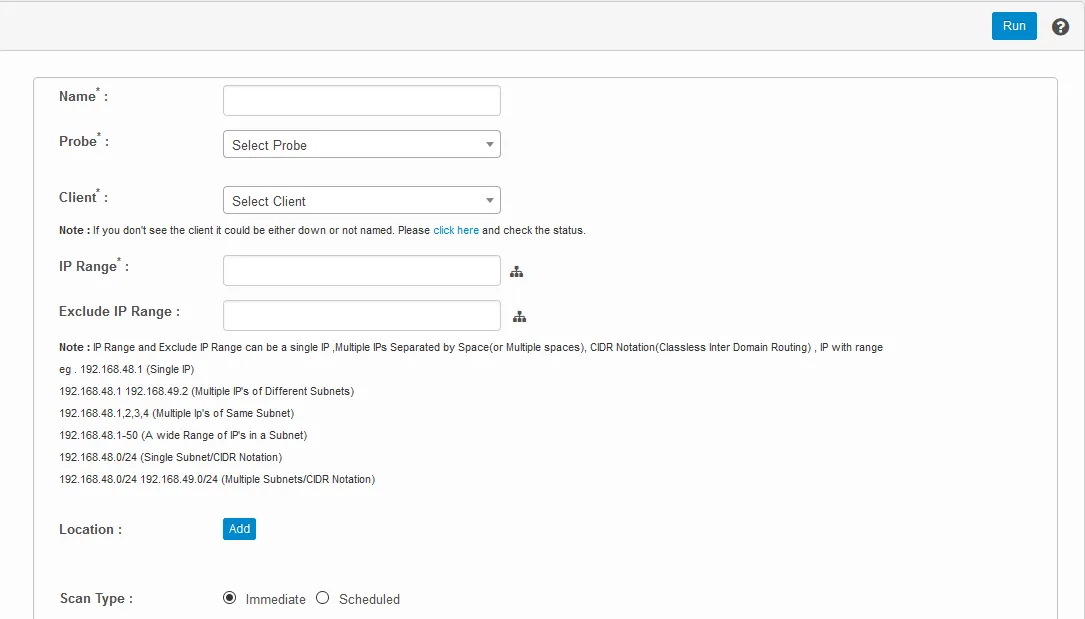
- From the Probe drop-down, select the required probe for the scan. To define a certificate scan, do the following:
- From the Probe drop-down, select Certificate Scan.
- From the Client drop-down, select the name of the client, then enter the certificate path.
- In the IP Range box, enter the IP address range to be included in the scan.
- In the Exclude IP Range box, enter the IP address range to be excluded from the scan.
- Click the icon to scan the entire subnet mask of the corresponding IP addresses.

- The default scan type option is Immediate. To schedule a scan, see the next procedure.
- Click Add to update the location and to select users to send the scan report to.
- In the top-right corner of the page, click Run to execute the scan as configured.
There are several types of scans available, based on your network environment. They include:
- Deep Host Scan: Enables you to view entire details of the host including IP address, OS type, MAC address, device basic details, software running instances, etc.
- Host Type Scan: Enables you to view the host type present in the network environment.
- Basic Host Scan: Enables you to view basic details of a device.
- Windows Basic AD Scan: Enables you to view basic details of a device present under an AD server.
- Windows Deep AD Scan: Enables you to view basic details of every device present under an AD server with AD structures present under diverse types of hosts in the network environment.
- IP Connection Scan: Enables you to view IP connection details.
- Website Discovery: Enables you to view web URL inputs and relevant information.
- Port Scan: Enables you to ping the existing ports in the network environment.
- Medical Device Scan: Enables you to view details of medical devices present in a monitored network environment.
Upon a successful scan, the results are displayed on the Discovery Assets page. In the left navigation pane, click Discovery Scan > Discovered Assets to see the results.
The following actions can be performed on discovered assets:
- Delete: Delete assets from the application.
- Move to CMDB: Move assets into the CMDB, where you can perform additional functionalities such as incident management, etc. For details, see the “Move CIs to the CMDB” section below. If you want to integrate with Ivanti Neurons for ITSM, you can view discovered assets from the ITSM console. For more information, contact your Ivanti representative.
- Re-scan: Repeat the scan process on the discovered assets.