
To import CIs in bulk
1 min
You can import CI record details and relations from .XLS, .XLSX, and .CSV files.
- In the left navigation pane, click Discovery Scan > Import Data Files. Note that after the data file is uploaded, you’ll see the name of the uploaded file, the current status of the file, the name of the user who uploaded the file, and the data and time of the upload. Click the file in the list to see the imported CI records.
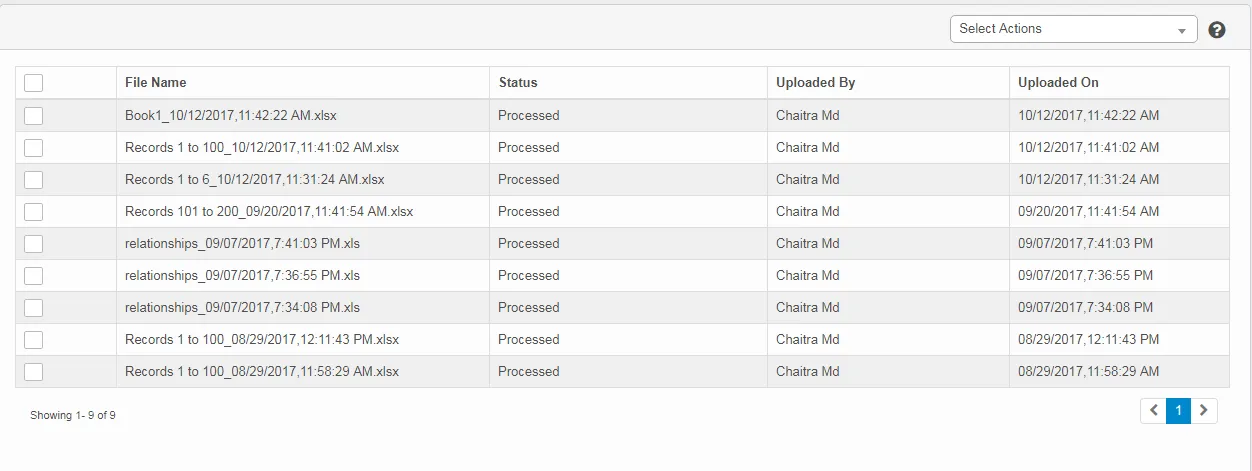
- To upload a data file containing CI details:
- From the Select Actions drop-down, select Import CIs. The Attach CI Data Files dialog displays.
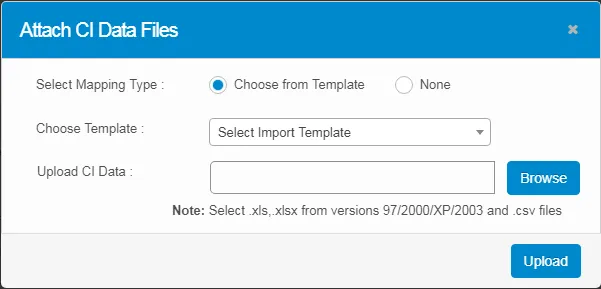
- Select the required type of mapping. If the mapping type is Choose from Template, also select the relevant template from the Choose Template drop-down.
- Click Browse to select the file, then click Upload.
- To upload assets and the relationship between two CIs from a data file:
- From the Select Actions drop-down, select Import Asset/CI Relations.
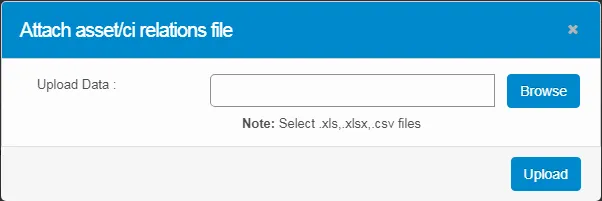
- Click Browse to select the file, the click Upload.