
To add new properties to a blueprint
1 min
You can add properties to a blueprint type by creating them manually or by importing from an Excel file.
- At the top-right corner of the page, click Admin. Under the SACM heading, click the Add New Property icon. The Add New Property dialog displays.
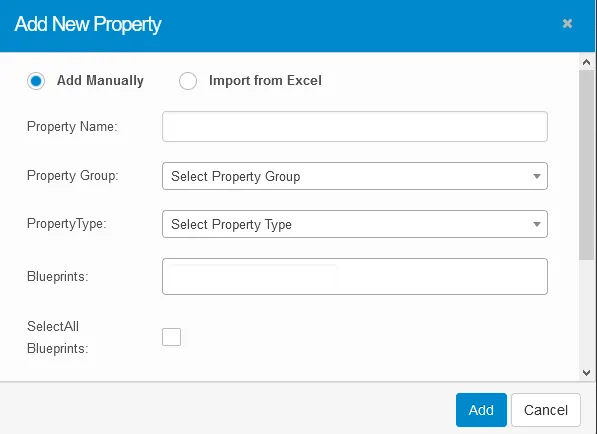
- To add properties manually:
- Click the Add Manually option.
- Enter the new property name, then select the property group and type from the drop-downs.
- Select a blueprint from the Blueprints drop-down.
- Scroll down and select the Is Mandatory option to define the property as a mandatory parameter.
- Click the icon to save the entered property details.

- Repeat the above instructions to save more properties.
- When finished, click Add.
- To add properties by importing from Excel:
- Click the Import from Excel option.
- Click Browse to select an Excel workbook with the property information, then click Upload.