
Registering iOS and macOS devices through the web
Web-based registration is the process of registering iOS and macOS devices in bulk for large deployments. The benefits of this style of registration include:
- iTunes accounts are not required
- No end-user interaction is required
The MDM profile applied to macOS devices following registration is only applicable to the device user logged in to the device, not to the device itself. In effect, this means that devices running macOS and registered with Ivanti EPMM do not allow multi-user support.
For registering macOS devices using Ivanti Mobile@Work , see Registering macOS devices with Ivanti EPMM using Ivanti Mobile@Work for macOS.
Prerequisites
Because users will be informed of the registration via email before they receive the device, consider turning off user notification when you bulk register devices. As an alternative, consider editing the registration template or informing users that they should ignore the email. See Customizing registration messages for information on editing the template.
Web-based registration requires a Safari browser on the device.
Procedure
- In the Admin Portal, go to Settings > System Settings > Users & Devices > Device Registration.
- Select the device registration settings that are relevant to your devices:
- Click Save.
Item | Description |
|---|---|
Enable Server Name Lookup | Select to enable server name lookup during registration. Enabling the Server Name Lookup makes registration easier by automatically filling in the server address for the device user. Administrators will need to follow important, specific instructions for this feature. Please see Enabling Server Name Lookup. |
Allow registration when password change is required | When a device user logs in for the first time, he/she will be asked to update the password for the next login. Selecting this field allows Ivanti EPMM to authenticate the device user and completes enrollment. This is limited to device registrations only. Disabled by default. |
Restrict device registrations by enrollment type | Select this option to restrict device registrations by enrollment type. Once checked, three additional checkboxes appear. Select all that apply:
|
Display QR Code and Registration URL | Enabled by default. When enabled, your users have access to a registration URL and QR code in their registration invitation. |
In-App Registration Requirement | Select an authentication option for devices registering with Ivanti EPMM through Ivanti Mobile@Work :
Note the following:
|
Allow silent in-app registration only once. (iOS and macOS) | Consider this extra security option if you are:
In this case, device users do not have to reenter their credentials when they launch Ivanti Mobile@Work . However, you can limit this silent registration with Ivanti Mobile@Work to one time only by selecting this option. |
Silent in-app registration time limit (minutes) (iOS and macOS) | Allows the administrator to specify the silent registration grace period. The minimum can be 1 minute, the maximum 525600 minutes (365 days). The default value is 240 minutes (4 hours). |
Apple Web-Based Registration Requirement | Select an authentication option for devices registering with Ivanti EPMM through the web:
These options also apply to macOS devices. |
- Apply the iOS or macOS label(s).
- Bulk register the devices on Ivanti EPMM.
- See “Bulk device registration” in the Getting Started with Ivanti EPMM for information on using bulk registration.
After these devices are registered, they will appear in the Devices & Users > Devices page with a status of Pending.
- On each device, point the browser to the following URL:
https://<fully-qualified domain name for Ivanti EPMM>/go
The registration screen appears.
- Enter the requested information for the user who will receive the device.
The registration screen appears.
- Instruct the device user to enter the requested information.
- Instruct the device user to tap or click Register.
If a terms of service agreement has been defined, it is displayed here.
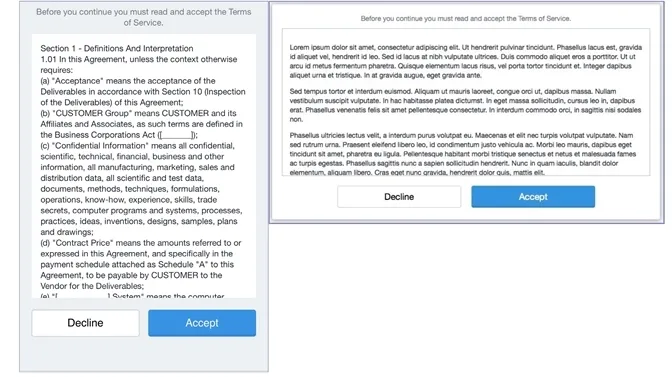
- Instruct the device user to tap or click Accept.
- Instruct the device user to follow the on-screen instructions for installing the relevant device management profiles.
Next steps
Related topics
Create a pending device report
This feature is supported on macOS devices.
A pending device report is used to list the username and the PIN and/or password you will need to complete the registration process on each user’s behalf.
Procedure
- Go to Devices & Users > Devices.
- Open Advanced Search by clicking the advanced search icon.
- Using the query builder, select the following:
- Select Status for Field
- Select Equals for Operator
- Select Pending for Value
- Click Search. The devices in pending state are shown in the table.
- To download this report in CSV format, click Export To CSV. The report includes the PIN and/or password required to complete registration, as appropriate.
Next steps
For iOS devices, proceed to In-app registration for iOS .