
Creating a TeamViewer app
2 min
This section explains how to create a TeamViewer app for use with your Ivanti EPMM.
- If you are not already logged in after TeamViewer account activation, to the TeamViewer Home page you bookmarked in Requesting a TeamViewer account.
- Select the Apps link at the bottom of the TeamViewer Home page (displayed after account activation).
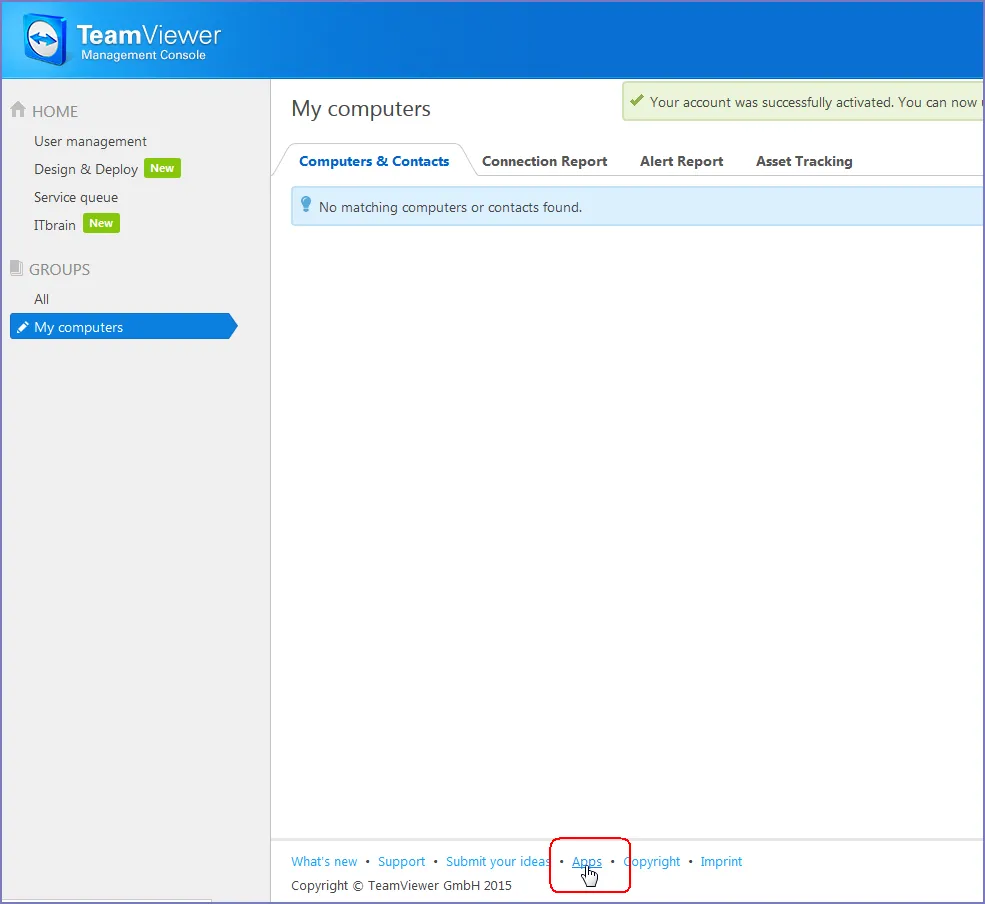
Select Apps at the bottom of the Team Viewer Home page
- The Apps and Scripts accessing your account dialog box opens. Select Create app.
- Enter the Name, Description and Redirect URI information.
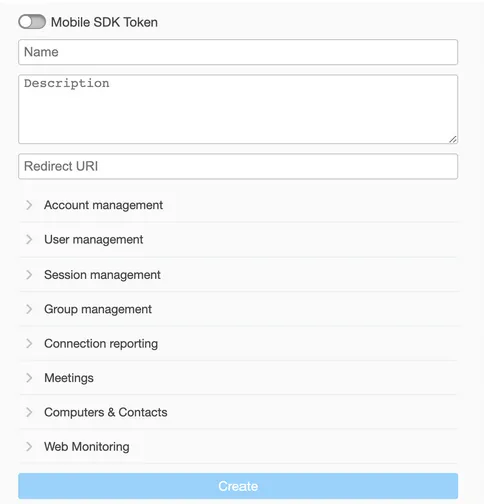
The Apps and Scripts dialog box for entering Name, Description and URI information.
- Name - Enter at least five characters.
- Description is optional
- Redirect URI - Enter it in the form of https://<ivantiepmm>/mifs/teamViewerRedirect, where <ivantiepmm> is the URL of your Ivanti EPMM installation.
Using a redirect URI is required.
- For Session management, select:
- View own sessions
- View all sessions
- Edit own sessions
- Create sessions
- Select Save.
- In the App created successfully dialog box, copy and save the displayed Client ID and Client secret. You will need this information for Enabling Help@Work in Ivanti EPMM.
- Select OK to close the dialog box.