
To create a custom export of CI data
2 min
A custom export enables you to include CI components and other properties in the export.
- In the left navigation pane, click ITSM > Configuration Management > Configuration Items. The Configuration Items page displays.
- From the Select Actions drop-down, select Export. The Export Type dialog displays.
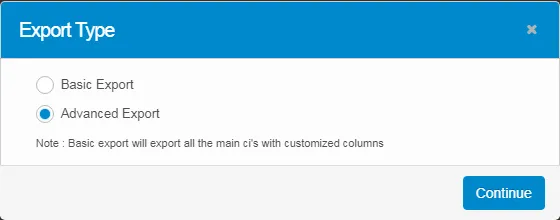
- Click Advanced Export and click Continue. The Export dialog displays. There are two export methods: Select Template and Custom.
- The Select Template method enables you to export CI data from the existing options in the application:
- From the Select Template drop-down, select the required option.
- Click Export.
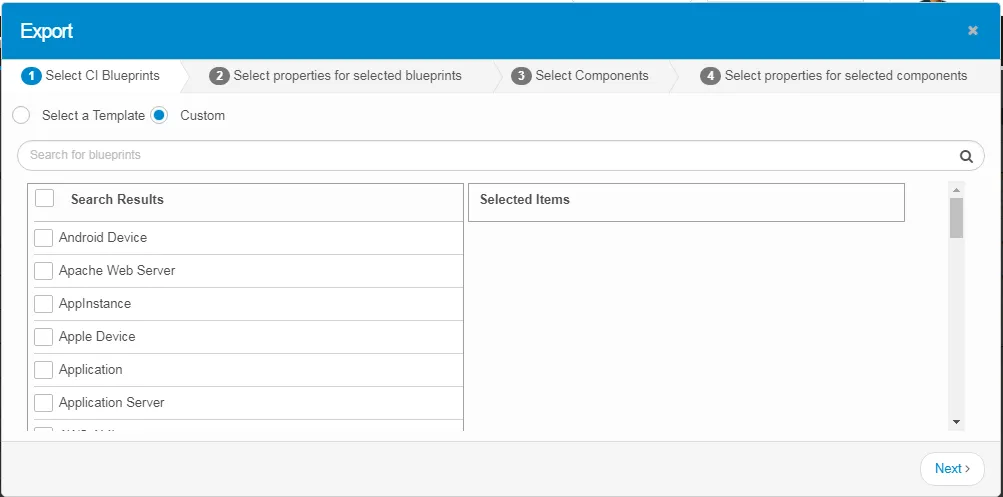
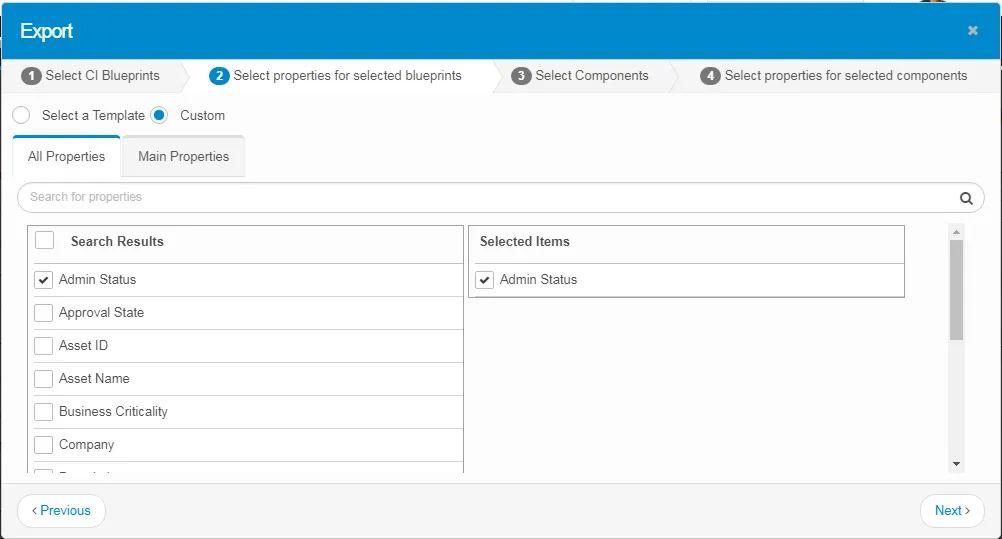
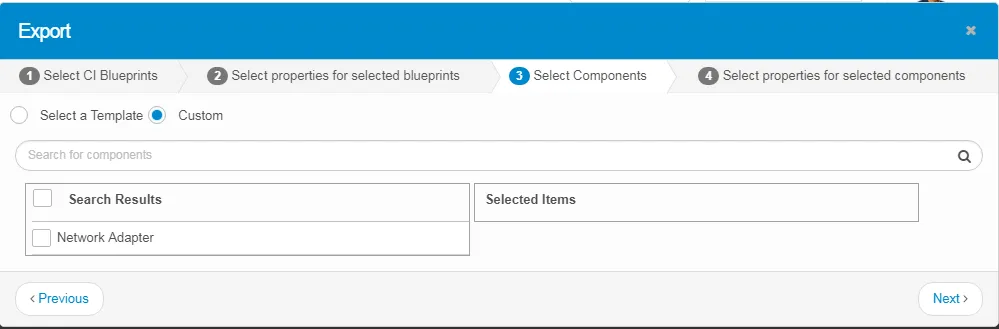
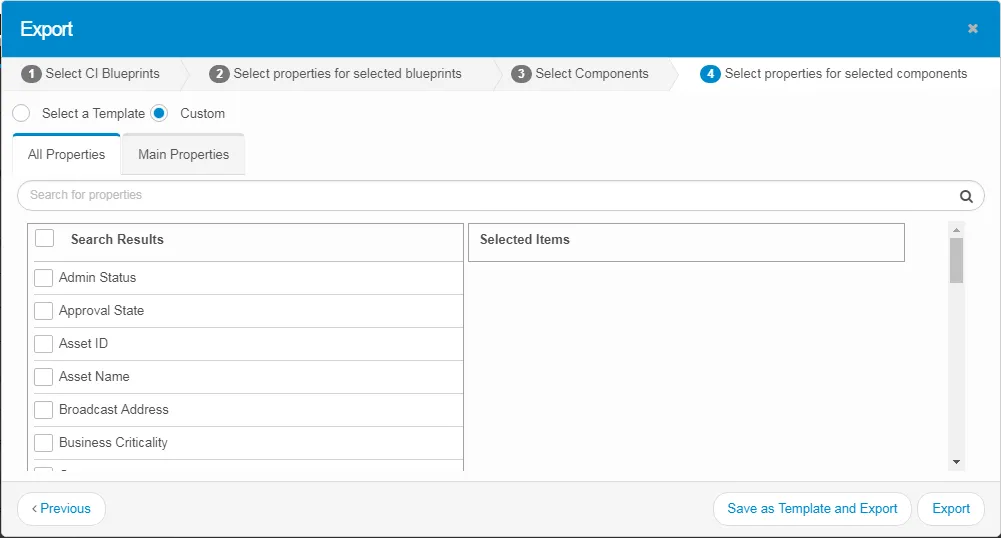
- The Custom method enables you to customize your exported CI report based on CI blueprints, properties for selected CI blueprints, components, and properties for selected components:
- Select the required CI blueprints and click Next.
- Select the required properties for the selected blueprints, then click Next.
- Select the required components, then click Next.
- Select the required properties for the selected components. You can save the selected blueprint options as a template to export by clicking Save as Template and Export, entering a template name, then clicking Save. The template name will be displayed in the Select Template option of the Export.
- Click Export. Note that with the Export option, no template is saved.