
Configuring UEM with Jamf in Ivanti Access
1 min
Ivanti Access integrates with Jamf (UEM vendor) to provide Zero Sign-on capability for desktops or laptops managed by them.
Before you begin
- Verify that you provide the CA signer certificate from the 3rd party UEM used for the identity certificate in the managed desktops.
- Verify that you have the Desktop Identity Certificate CA referenced in Certificate based Single Sign On (Profile >Federation).
- Download the PKG file from Ivanti support site.
Procedure
- Login to Access > UEM > 3rd Party UEMs.
- Click Connect UEM.
- Select Jamf.
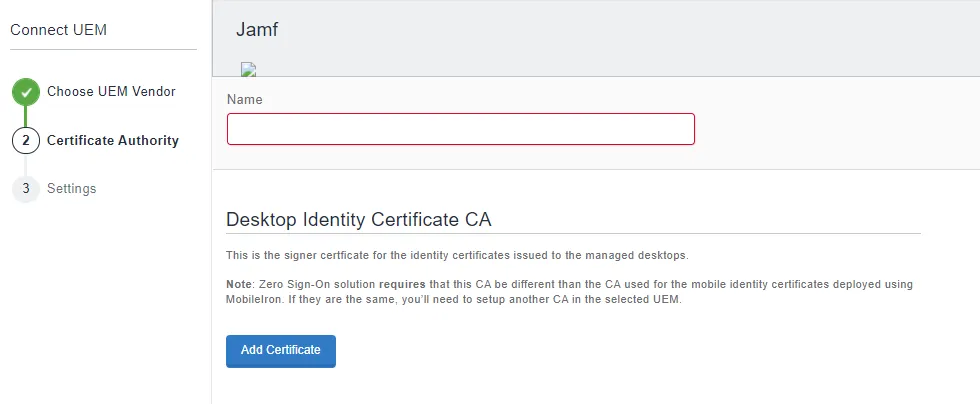
- Enter the following details:
- Enter a Name.
- Click Add Certificate under Desktop Identity Certificate CA.
- Enter the Certificate Name and add the certificate.
Or
Paste the certificate.
Only PEM and CER file types are allowed.
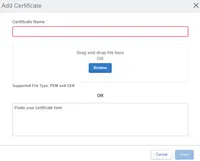
- Click Done.
- Click Next.
- (Optional) Enter the Management Check details. Check whether desktop is registered to Jamf and check compliance if smart group is provided.
- Enable to toggle for "Verify desktop is managed by Jamf and limit access to only managed desktops". Enabling this option performs a check during Authenticate registration and authentication to service providers.
- Enter the Tenant URL.
- Username
- Password
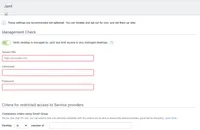
- (Optional) Enter the compliance criteria using Smart Group to enable restricted access to service providers. Use the Zero Sign-on rule to enforce that only desktops compliant with this criteria are able to access the service providers governed by the policy.
- Click Done.
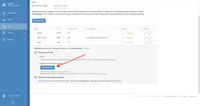
- Under UEM > 3rd Party UEMs, the Jamf instance is created.
- Click Download Plist and save the XML as a .plist file to upload in Jamf.
Next steps