
Configuring Authenticate on Jamf
1 min
Ivanti Access integrates with Jamf (UEM vendors) to provide Zero Sign-On capability for desktops or laptops managed by them.
Before you begin
- Verify that you have the Jamf credentials and account to log in.
- Verify that you have downloaded the PKG package file from Ivanti Support site.
- Verify that you have configured Jamf in Ivanti Access. See Configuring UEM with Jamf in Ivanti Access.
- Verify that you have the .plist file that you saved when configuring Jamf in Ivanti Access. See Configuring UEM with Jamf in Ivanti Access.
Procedure
- Login to Jamf account with admin credentials.
- Click Computers> Configuration Profiles.

- Click Upload > Choose File > Upload.
- Click Management Settings > Packages > New.
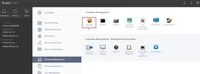
- Enter the Display Name and select the Category to add the package to.
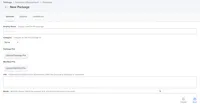
- Click Upload Package File to upload the PKG package file downloaded from the Ivanti Support site.
- Click Save.
- Click Policies > New > Display Name.
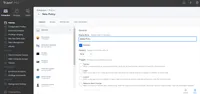
- Click Packages > Configure.
- Add the PKG package file that was uploaded in Management Settings.
- Click Save.