
Working with Projects
3 min
In the Projects workspace, you can create Projects, Recipes, Connections and Folders. You can also create Project Properties for constant values such as address, and connection URL, that can be reused across Recipes.
Creating a Project
- Open the Configuration console > Extend > iPaaS integration > Projects.
- From the Projects page, click Create Project.
- Type a Project Name and Description (optional).
- Click Create Project.
The Project is created. The next step is to create a Folder.
For more information, see Workato Projects.
Creating a Folder
- Open a Project, click the Create dropdown button and select Folder.
- Type a Folder Name and select the Location where the folder should be created.
- Click Create Folder.
The Folder is created. The next step is to create a Recipe.
Creating a Recipe
- Open a Project, click the Create dropdown button and select Recipe.
- Type a Name and set the Location where the Recipe should be saved.
- Pick a Starting Point. Select an option based on your requirement. For example, select Trigger from an App to set the trigger based on an event in the app, or Run on a Scheduler to set the trigger at a scheduled time.
- Click Start Building.
The next step is to set the Trigger and Actions for the Recipe. For more information, see Workato Recipe - Building a Recipe.
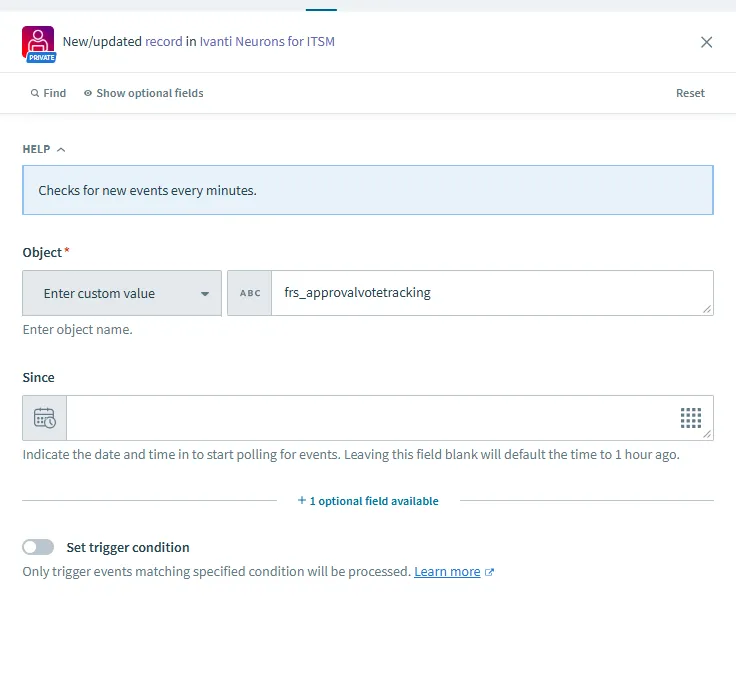
- When selecting a business object and using Enter Custom Value, enter the name using all lowercase letters. Business object names are case-sensitive. For example, business objects such as FRS_Knowledge, and FRS_CIComponent.Warranties enter it as frs_knowledge , and frs_knowledge, respectively.
Creating Project Properties
- Open a Project and select the Settings tab.
- Expand the General section and click Project Properties.
- Enter the Property Name and Value.
- Click Save.