
Adding and distributing a macOS application for Authenticate
1 min
After configuring Authenticate for an appropriate operating system , the user adds the Authenticate application in Ivanti Neurons for MDM.
Before you begin
- Download the PKG file for Authenticate from the Ivanti support site.
Procedure
- In Ivanti Neurons for MDM, click Apps > App Catalog > Add.
- Select In-House from the drop-down.
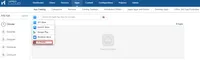
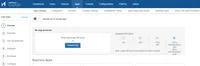
- Click Choose File and upload the PKG file appropriately. Click Next.
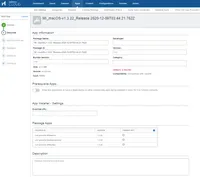
- Enter the appropriate Category in the description page.
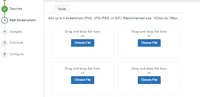
- (Optional) Add Screenshots appropriately.
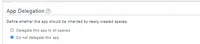
- (Optional) Delegate this application if it should be inherited by newly created spaces.
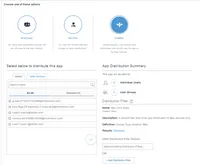
- Choose any option to distribute the app between the appropriate users and click Next.
- Everyone
- No One
- Custom: Select Users or User Groups, Distribution Filter and view the App Distribution Summary.
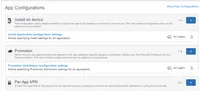
- In App Configurations, configure the application as desired.
- Install on device: Allows specifying install settings for an application.
- Promotion: Defines how the app gets promoted and appears in the app catalog for specific groups or individuals.
- Per App VPN: Enables Per App VPN for the application such that it connects to enterprise services through native iOS/macOS capabilities or using Ivanti Tunnel app.
- Click Done.