Working with Gateways
- Introduction
Introduction
After you have successfully logged into the Ivanti Neurons for Secure Access (nSA) Controller as a Tenant Admin user (see Logging in as a Tenant Administrator), you can start the configuration of your vTM platform by adding Gateways.
nSA supports the following main Gateway types, depending on your subscription:
- nZTA Gateway
- Ivanti Connect Secure (ICS) Gateway
- Virtual Traffic Manager (vTM) Gateway
This chapter covers functionality relating to a vTM Gateway only. For details pertaining to nZTA and ICS Gateways, see the respective Tenant Admin Guide in the Ivanti documentation portal.
A Gateway controls access to the applications at the location to which it is deployed. This location could be a physical datacenter, a private or public cloud-based service, or some hybrid combination. Each Gateway communicates with the Controller to ensure that access requests are authenticated. A Gateway must be contactable by both the Controller and the applications that reside there.
Viewing vTM Gateway Details
After you have registered your Gateways with the Controller, you can:
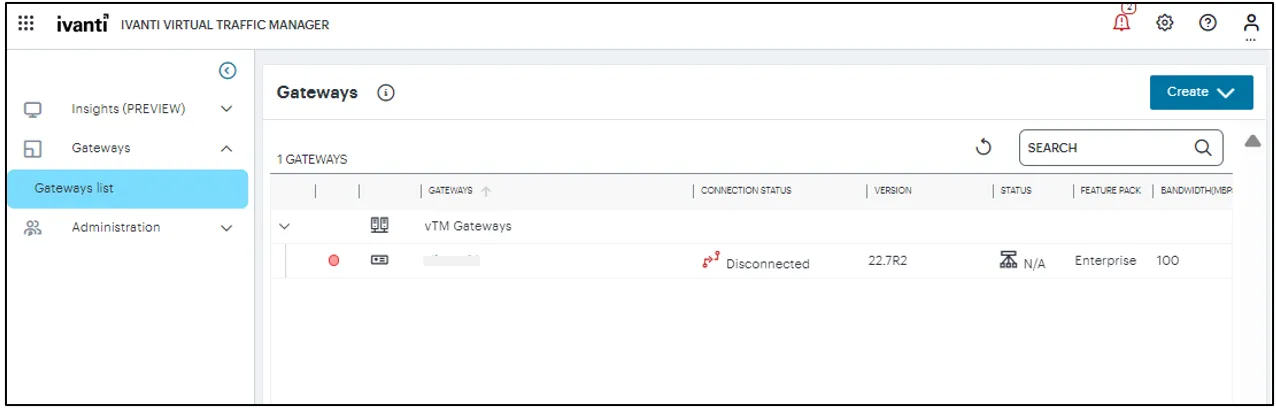
- View the list of Gateways The gateway list page displays the additional columns to show the connection status, vTM version, feature pack used and the bandwidth allocated to the gateway.
- View the summary of the Gateway configuration
- Edit the Gateway configuration
- Delete a Gateway
When you select a Gateway from the Gateways list, the Gateway details page displays the configuration information for the selected Gateway.
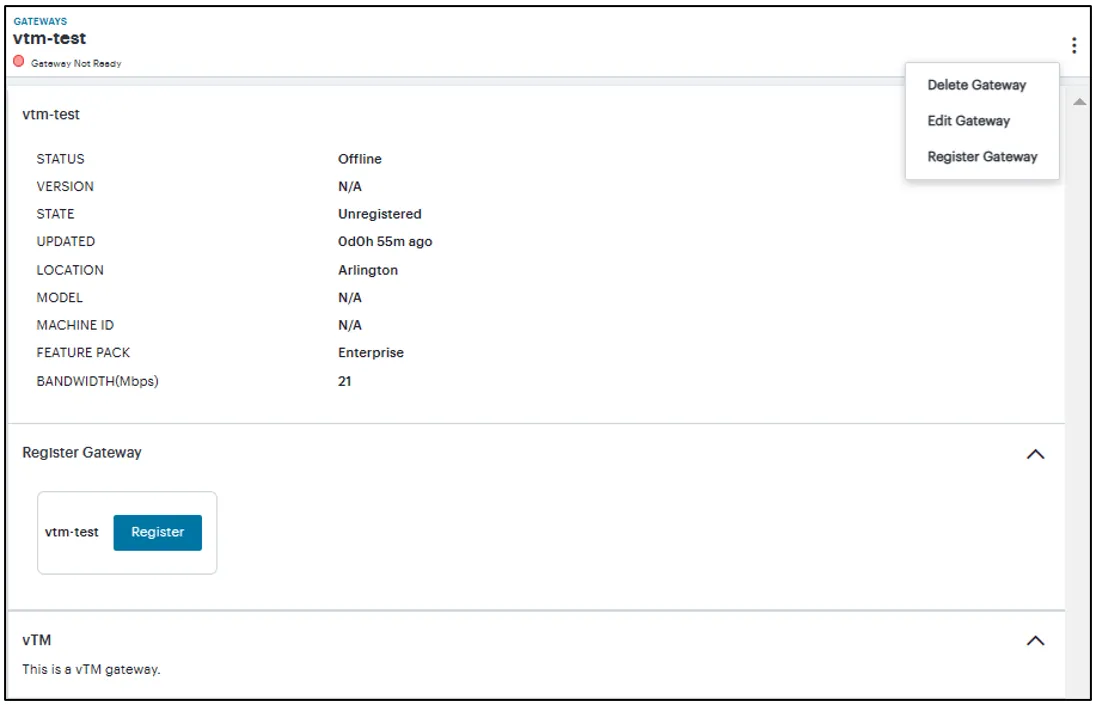
You can edit, delete, reboot or restart the Gateway from this page.
- In the Gateways List page, click the Gateway name link.
The Gateway details page appears.
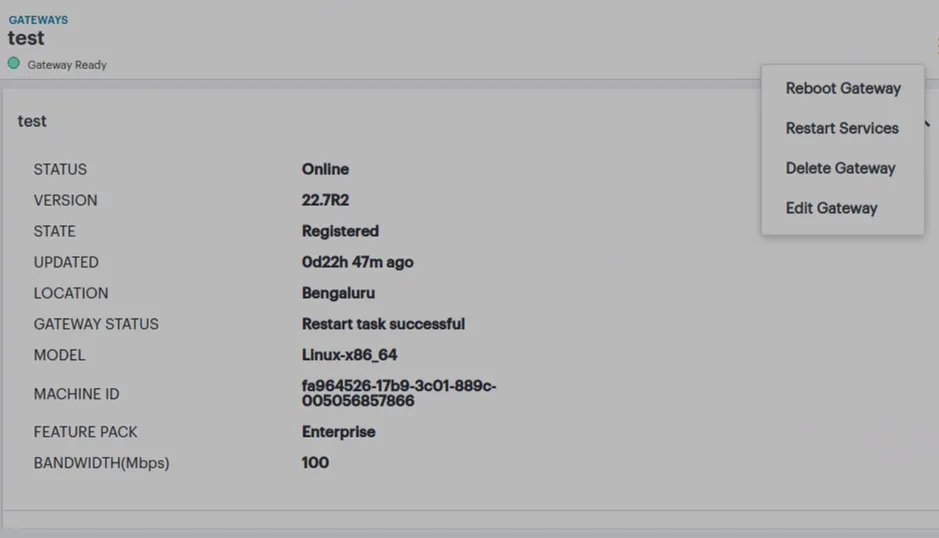
- Click the three dots located on the top-right corner.
- To edit the Gateway, click Edit Gateway and in the screen that appears, select a different feature pack or allocate a different bandwidth, and then click Save.
- To delete the Gateway, click Delete Gateway and in the delete confirmation screen that appears, click Confirm.
- To reboot the Gateway, click Reboot Gateway. The Gateway is available again after a few minutes.
- To restart the services, click Restart Services. The Gateway is available again after a few minutes.
Monitoring vTM Gateway
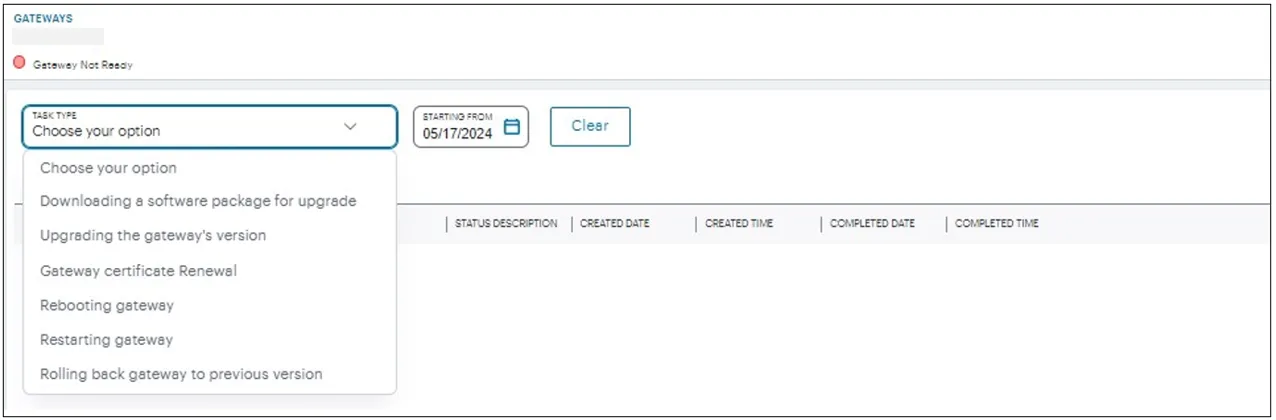
An admin can view the progress of operation and status of the operation:
- Downloading a software package for upgrade
- Upgrading the gateway's version
- Gateway certificate renewal
- Rebooting gateway
- Restarting gateway
- Rolling back gateway to previous version
To open the gateway task page:
- In the Gateways list page, click the Gateway name link.
The Gateway Details page appears.
- In the left navigation, select Gateway list > <Gateway name> > Tasks.
The Tasks page displays the list of tasks.
- In the Tasks page, choose the required task type from the drop-down list and period to view the details.