
Registering Virtual Traffic Manager Gateway
3 min
Once you have logged into the Ivanti Neurons for Secure Access, you can register one or more vTM Gateways.
Before registering a vTM Gateway, ensure that the vTM GW is reachable and connection status is in "Connected" status.
To launch vTM Gateway UI:
- In the Ivanti Neurons for Secure Access UI, select the Gateway Switcher icon located on the top left corner.
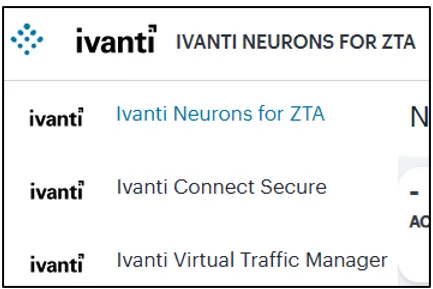
- From the list, select Ivanti Virtual Traffic Manager. The Virtual Traffic Manager UI page is displayed.
To register vTM Gateway:
- From the Virtual Traffic Manager menu, click the Gateways icon, then select Gateways > Gateways List.
- In the Gateways page that is displayed, click the Create drop-down list.
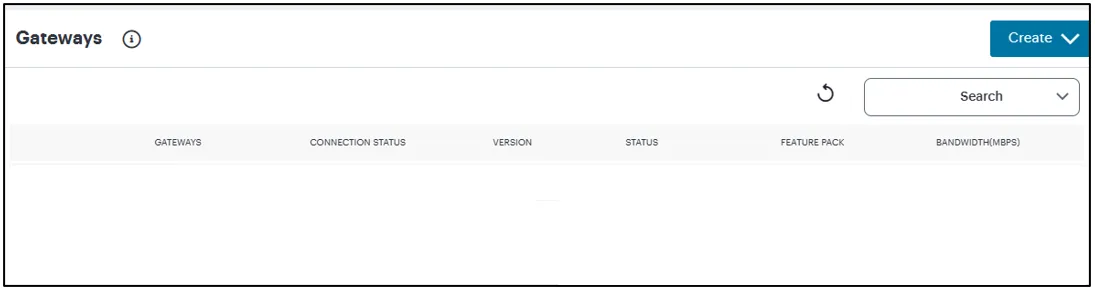
- From the Gateway types list, select vTM Gateway. The Register vTM Gateway page is displayed.
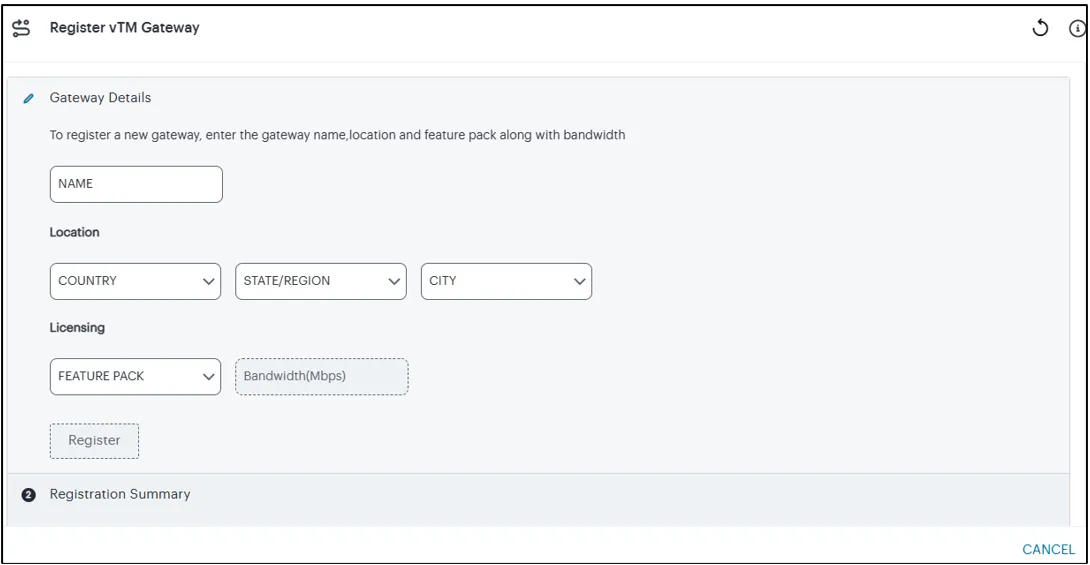
- Enter a unique name for vTM gateway.
The name should be maximum 16 characters, only alphanumeric, underscores, and hyphens are allowed between characters, and must start with a letter.
- Select your Location details such as Country, State / Region, and City.
- Select your Licensing details such as Feature Pack and Bandwidth for the gateway. If there is overallocation or under allocation of the bandwidth, the Admin will be notified.
- Click Register. The Registration Summary page contains the FQDN URL and Registration Key, which you need to enter in the vTM Gateway to complete the registration.
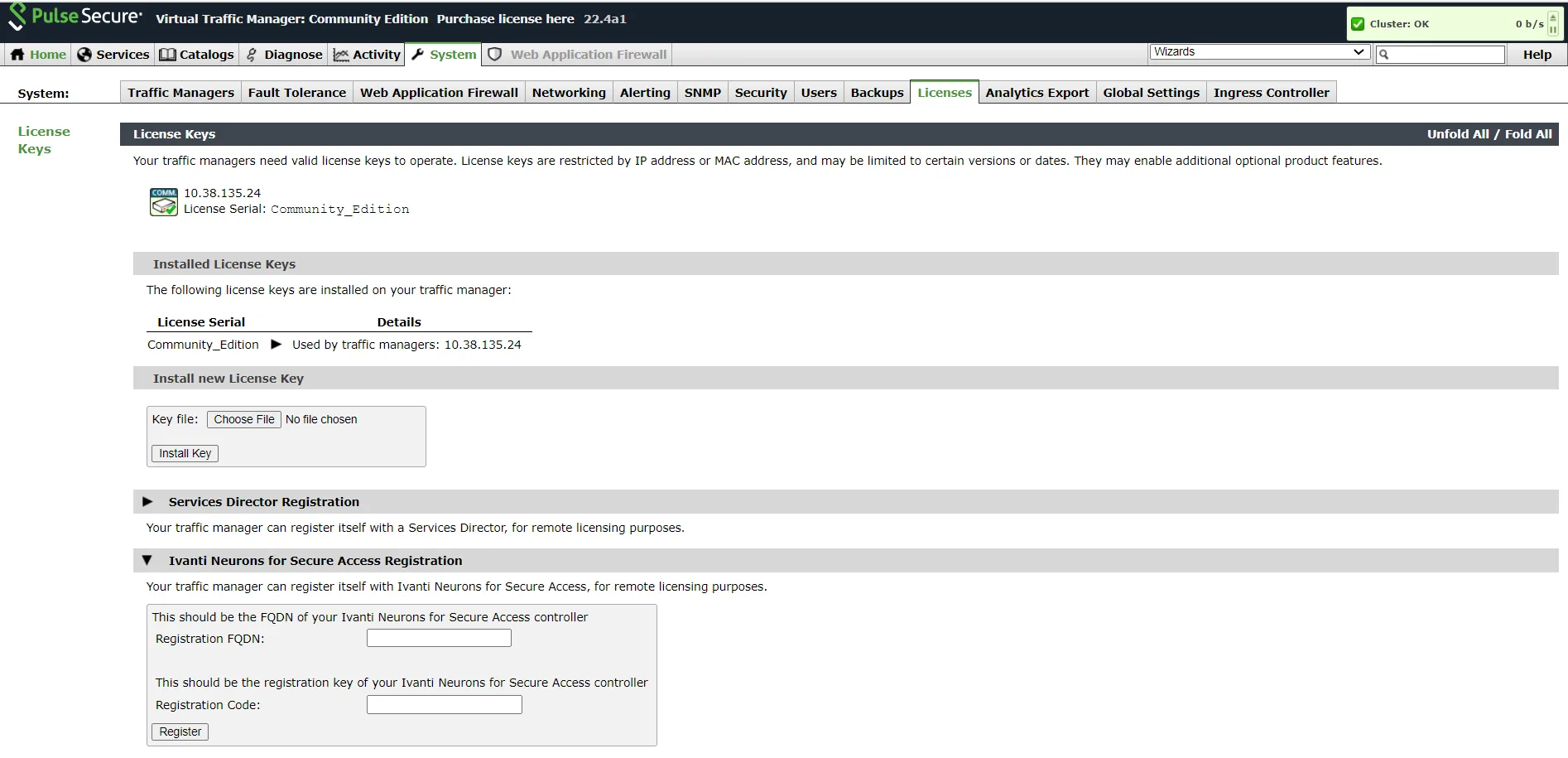
- Click Close. The newly added vTM Gateway gets listed under vTM Gateways list. You can edit the Gateway configuration or delete the Gateway. For details, see Working with Gateways.