
Creating Tenants in the MSP Portal
- Introduction
Introduction
This chapter describes how to use the MSP portal to create and edit tenants. Before you begin, make sure you have the following information for a prospective tenant:
- The tenant name
- The services required (nZTA and/or ICS), including the maximum potential end-user count required in each case
- The subdomain you want to configure for the tenant, in the form https://<subdomain>.pulsezta.net.
- The username and email address of a tenant administrator. This is the individual who can login to the Tenant Admin Portal and configure the Secure Access Policies governing access to an organization's applications and resources.
To learn more about adding new tenants to the MSP portal, see Using the Add New Tenant Workflow. To learn more about editing an existing tenant, see Editing the Details of an Existing Tenant.
Using the Add New Tenant Workflow
To add a new tenant:
- Log into MSP portal as an MSP Admin, see Logging into the MSP Portal.
- From the main Dashboard page, activate the Add New Tenant workflow by selecting Add tenant from the All Tenants panel:
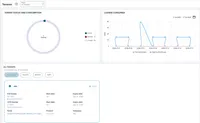
The Add New Tenant workflow dialog appears:
The Add New Tenant workflow dialog appears:
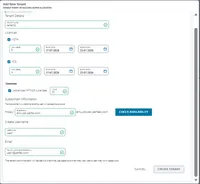
- In the Tenant Details section:
- Enter a tenant name.
- Use the check boxes to select the services to which this tenant is entitled to access.
- For each selected service, enter the Max Users allowed to access the service, Start Date and Expiry Date. This is a soft limit that does not restrict additional users from enrolling to the relevant service. Instead, a tenant exceeding this limit receives a warning in the Tenant Admin Portal enabling them to take action without any reduction in service. Furthermore, the MSP Portal dashboard is updated to indicate to a MSP Admin any tenants that have breached their user limit.
- Select Advanced HTML5 Licenses and enter the Value.
- In the Subdomain Information section:
Enter the unique Subdomain you want to allocate for this tenant. This forms part of the FQDN to which all users enroll or sign-in their devices.
Your tenant FQDN must be unique and unused. To check the availability of the FQDN, enter the Subdomain and select CHECK AVAILABILITY.
nSA presents an error if the domain is unavailable:

The subdomain should not contain a dot (.). For example: abc.dom.pulsezta.net is not valid as the subdomain <abc.dom> contains a dot (.).
- In the Create Username* section: Enter the Username of the initial tenant administrator account.
- In the Email section, enter the Tenant administrator Email to which you want to send the invitation email. The recipient receives an email containing credentials and a link to login to the default Tenant Admin Portal endpoint (based on the subdomain you specify for this tenant, the default endpoint is https://<subdomain>.pulsezta.net/login/admin). This includes a one-time use password that must be changed upon login.
- Make sure your tenant details are correct. A deployed tenant can only be edited to update basic details - the product entitlement and admin account details are not amendable through the MSP Admin Portal.
A Tenant Admin is entitled to modify their administrative user details at any point through the Tenant Admin Portal. For more details, see the Tenant Admin documentation.
- To create the tenant, select Create Tenant. The Dashboard page reappears and your new tenant is added to the All Tenants list with a status of “Initializing”. After the creation process completes, the status updates to “Active”.
This process can take a few minutes to complete. If your tenant status remains as “Initializing” for some time, contact Ivanti Support for help.
Editing the Details of an Existing Tenant
To edit an existing tenant:
- Log into MSP portal as an MSP Admin, see Logging into the MSP Portal.
- From the main Dashboard page, select the checkbox adjacent to a tenant entry in the All Tenants panel, then select Edit: The Edit Tenant dialog appears:
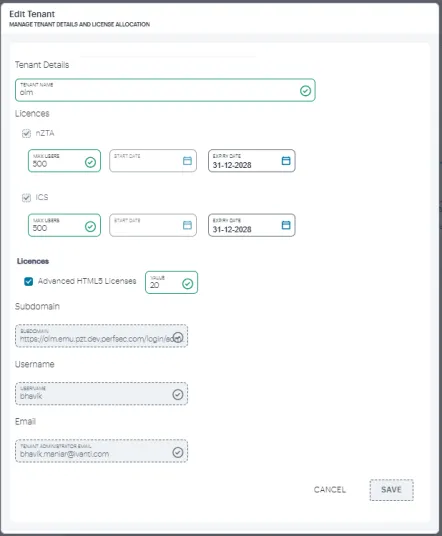
- In the Tenant Details section, you can edit:
- The Tenant Name
- The Max Users amount for each service entitlement
- The Expiry Date
When editing a tenant, you cannot add or remove subscriptions.
- To save your changes, select Save.
License Consumption
In the main Dashboard page, the License Consumed graph displays license consumption metrics for managed tenants. The graph does not display active user counts.
In the main Dashboard page, select All tenants from the Tenants drop-down list to view cumulative sum of License consumed for all tenants.
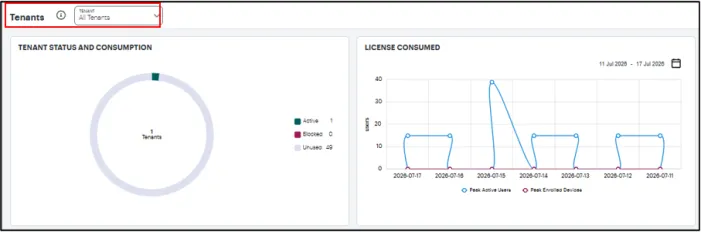
You can select a date range using the option. For each day within the selected date range, the graph plots the Peak License Usage (high watermark) recorded for that day. This provides administrators with insight into maximum license utilization over time.
When a date range spanning multiple days is selected, the graph displays the daily high watermark for each day in the selected period. High watermark refers to "maximum license consumption recorded during a measurement period."
To view license consumed by a specific tenant, select the tenant from the Tenants drop-down list. Select the date range to view daily high watermark for each day in the selected period.
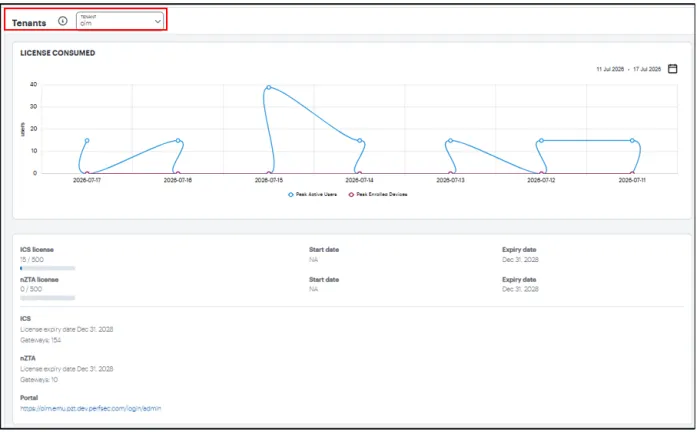
Below the graph, the page shows the selected tenant's details such as subscriptions, subscription Start Date and End Date, and MSP URL.
Blocking/Unblocking a Tenant
To block a tenant:
- Log into MSP portal as an MSP Admin, see Logging into the MSP Portal.
- From the main Dashboard page, select the check box adjacent to a tenant entry in the All Tenants panel, then click Block:
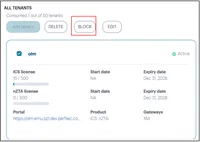
Blocking a tenant
Blocking a tenant
If a tenant having ICS is blocked, it blocks only the admin access. User access is not blocked and users continue to access the nSA gateways.
To unblock a tenant, select the tenant and click Unblock.