Deploying on Proxmox
Introduction
This document provides a detailed guide for deploying Ivanti Connect Secure (ICS) on Proxmox, including prerequisites for secure boot with Ivanti OVMF firmware, steps to upload and prepare the ICS image, instructions to create and configure the ICS virtual machine with appropriate hardware and network settings, initialization using a configuration ISO, and reference configurations for firmware and image management.
Prerequisites
Ivanti Secure Boot
To boot Ivanti virtual ICS in secure boot mode, perform the following steps on compute nodes.
- Extract Ivanti released OVMF firmware and VARS file from KVM ZIP artifact.
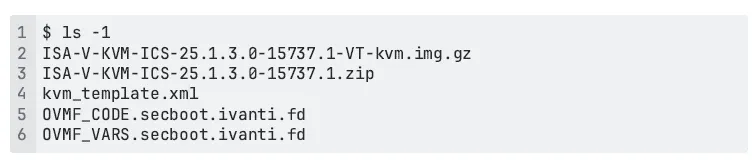
- Ivanti released OVMF firmware and VARS file needs to be copied to /usr/share/pve-edk2-firmware directory of compute nodes.

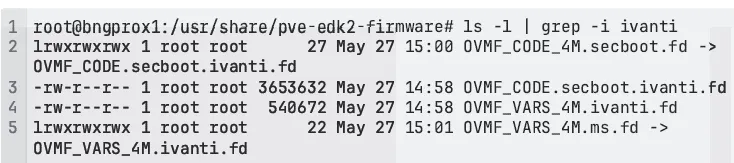
- Symlink default secboot OVMF files to point to Ivanti OVMF files. It should be as follows.
- Since OVMF contents is being modified, disable automatic update of OVMF.

Upload ICS Image to Proxmox
To upload the ICS image on Proxmox, perform the following steps:
- Extract ICS image from KVM ZIP artifact.
- Unzip KVM image file.

- Rename .img file to .qcow2. Proxmox identifies file type based on extension
It is important to rename .img to .qcow2. Without this step, proxmox identifies image as raw and VM will not boot.

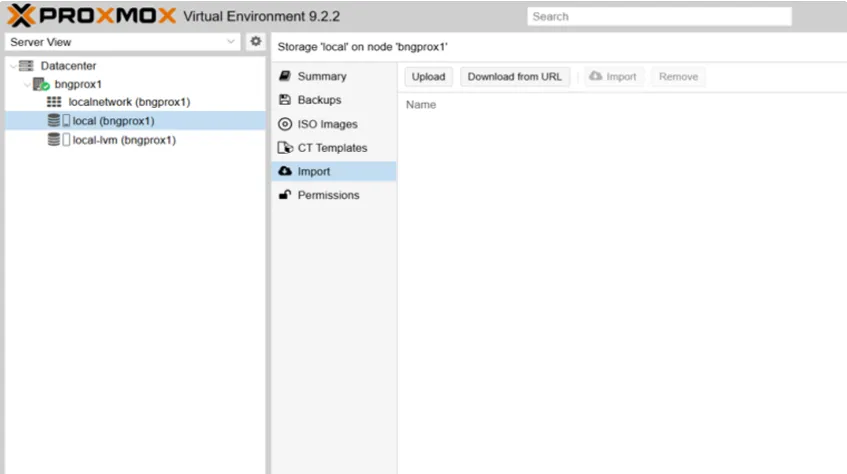
- Upload ICS qcow2 image to Proxmox.
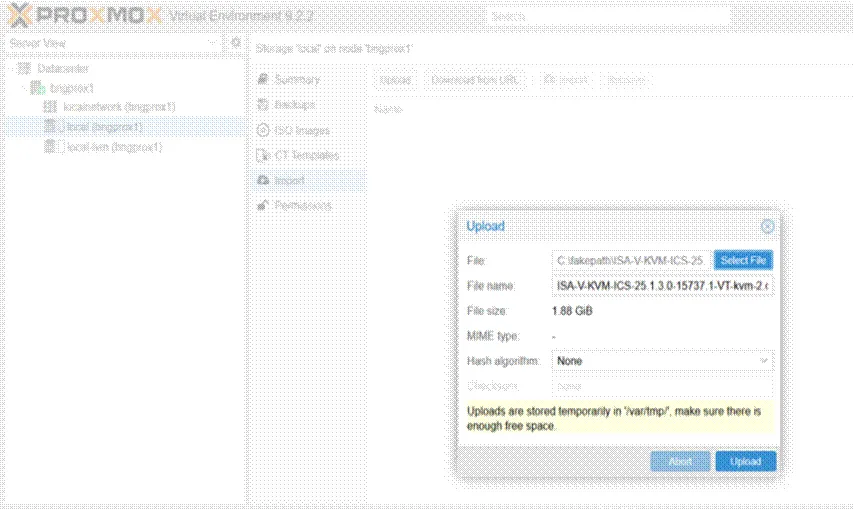
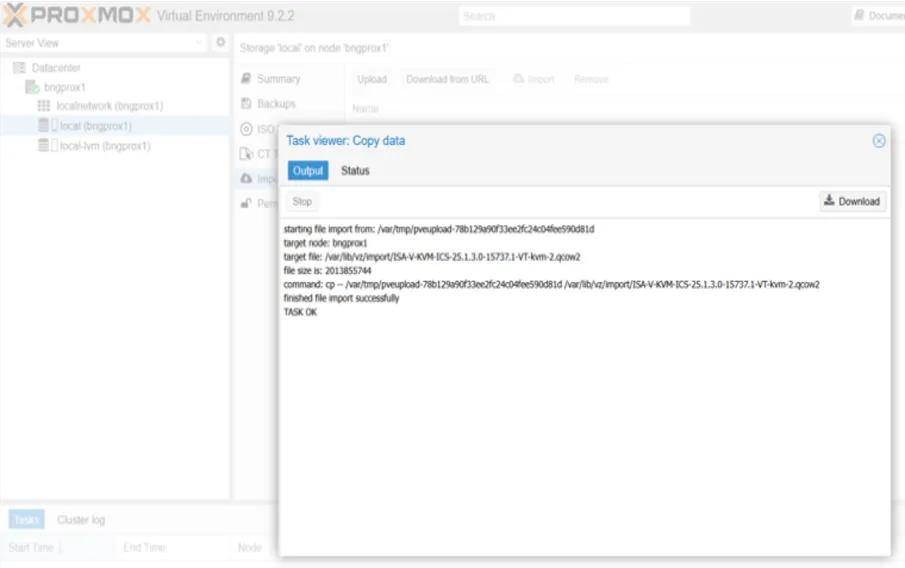
Create ICS VM on Proxmox
To create ICS VM image on Proxmox, perform the following steps:
- Select CreateVM option on Proxmox hypervisor.
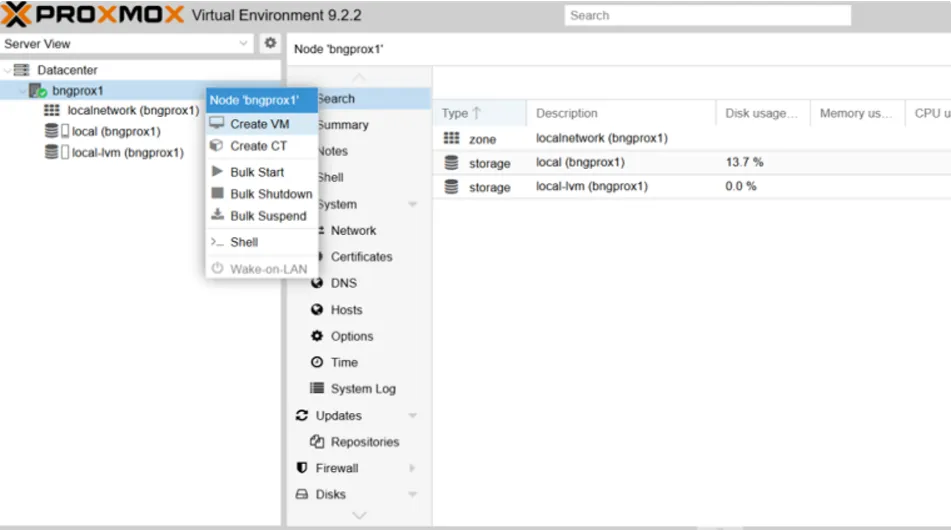
- Enter the virtual machine name.
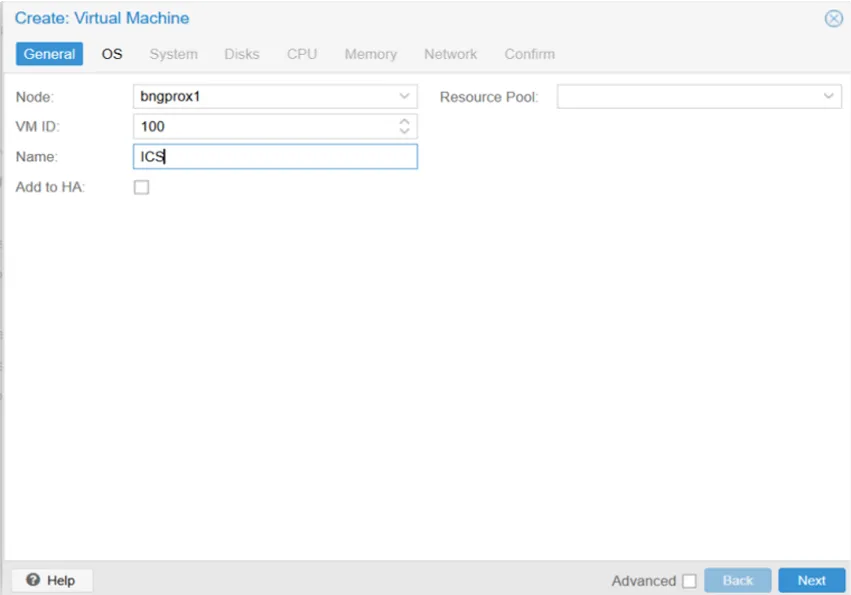
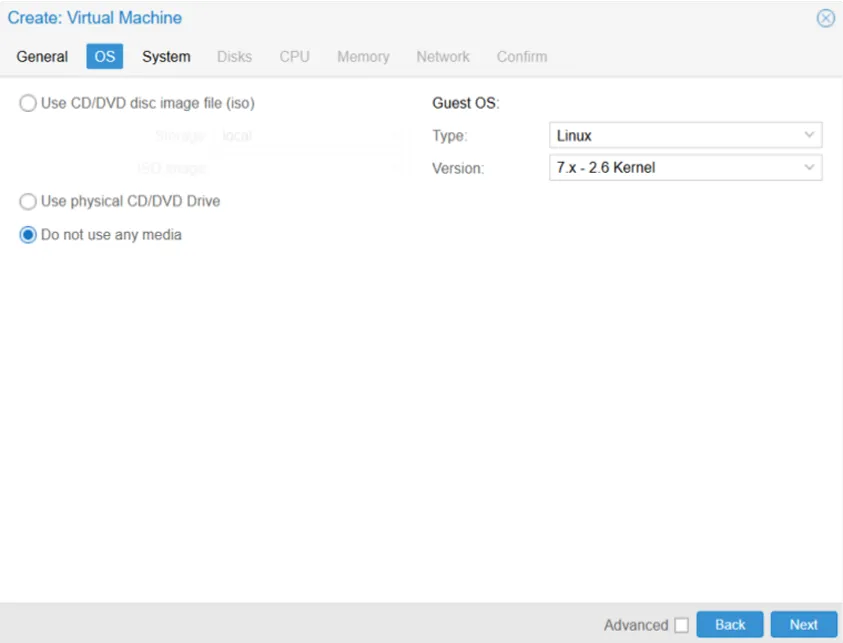
- Select “Do not use any media” option.
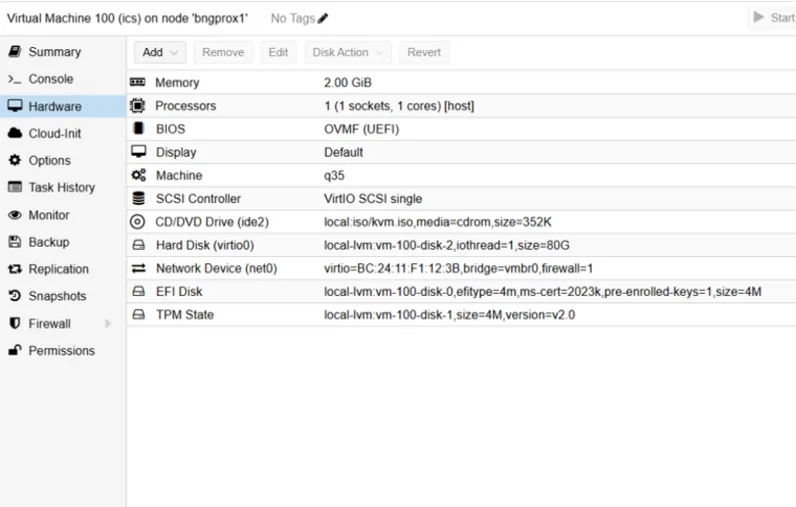
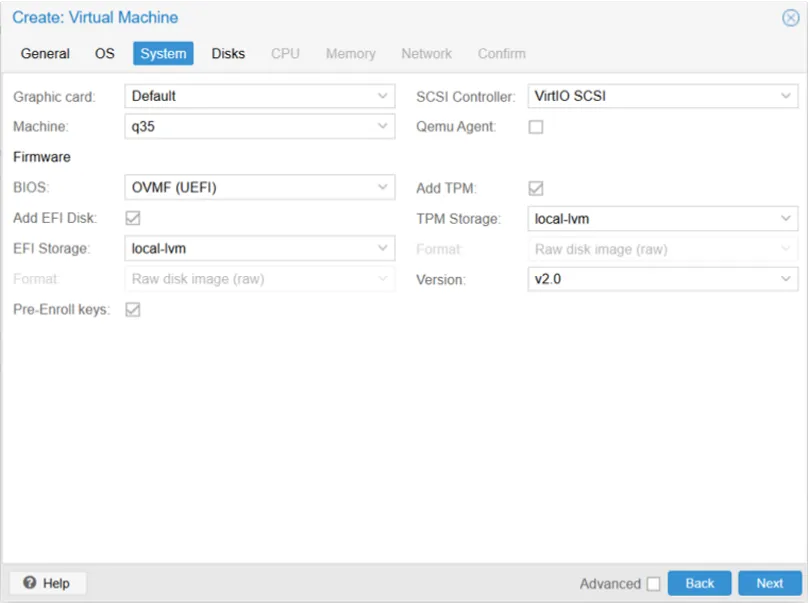
- Select information as follows: a. Machine type: q35. b. BIOS: OVMF (UEFI). c. Add EFI Disk. d. Pre-enroll Keys. e. Add TPM. f. Version: 2.0.
- Delete default disk by clicking trash button on top left.
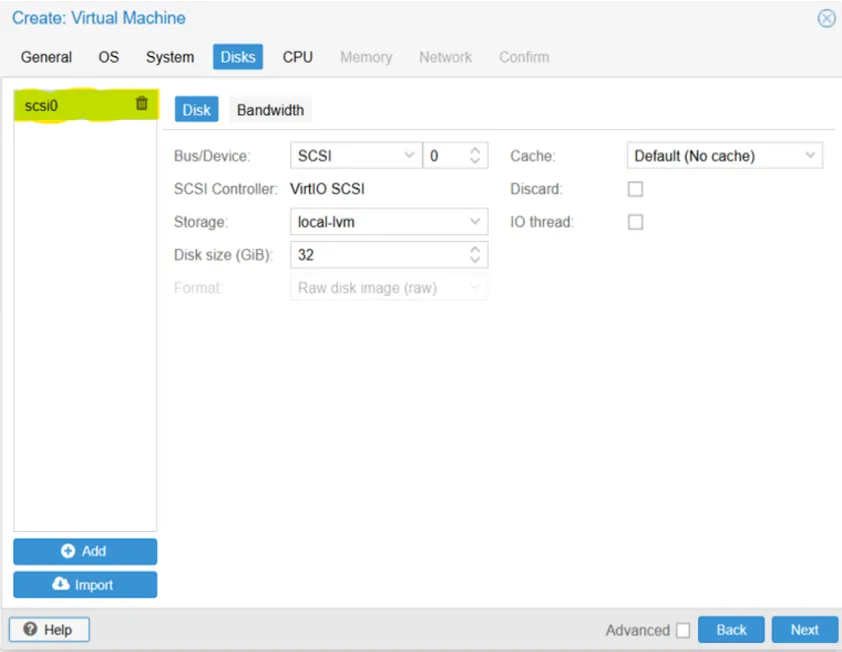
- Click “Import” on bottom left corner for option to import ICS image.
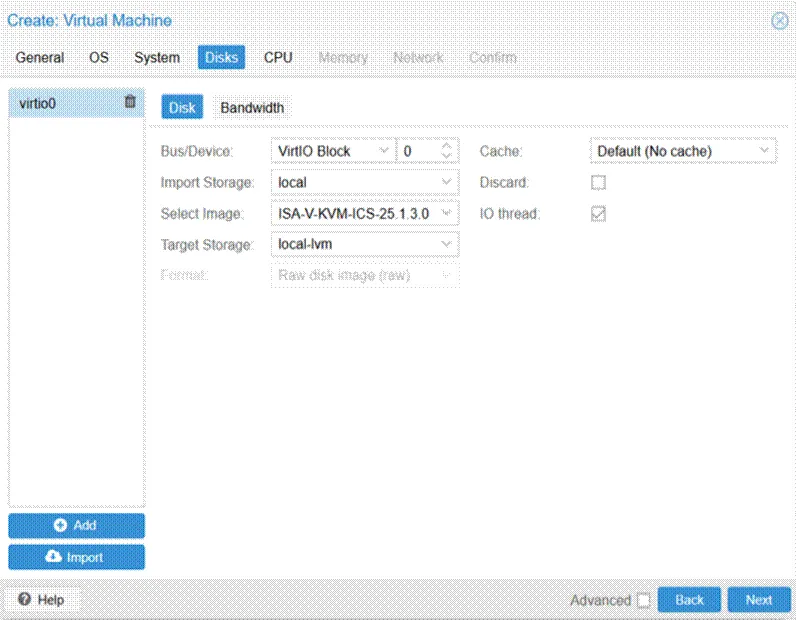
- Import uploaded qcow2 ICS image. Use Virtio Block as Bus/Device.
- Enter CPU and memory information to suit your ICS instance size. a. ISA4500V: 4 vCPUs and 8 GB RAM. b. ISA6500V: 8 vCPUs and 16 GB RAM. c. ISA8500V: 12 vCPUs and 32 GB RAM.
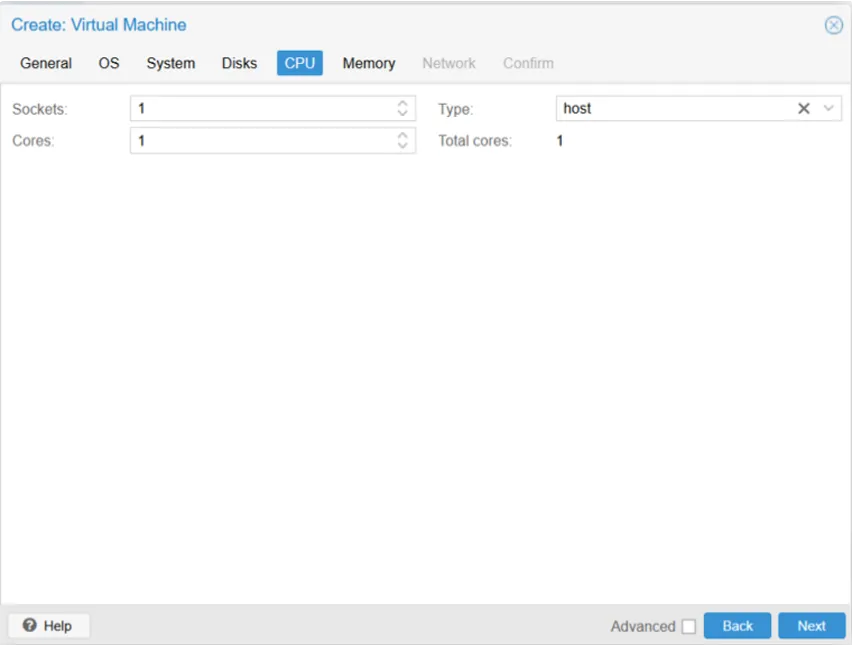
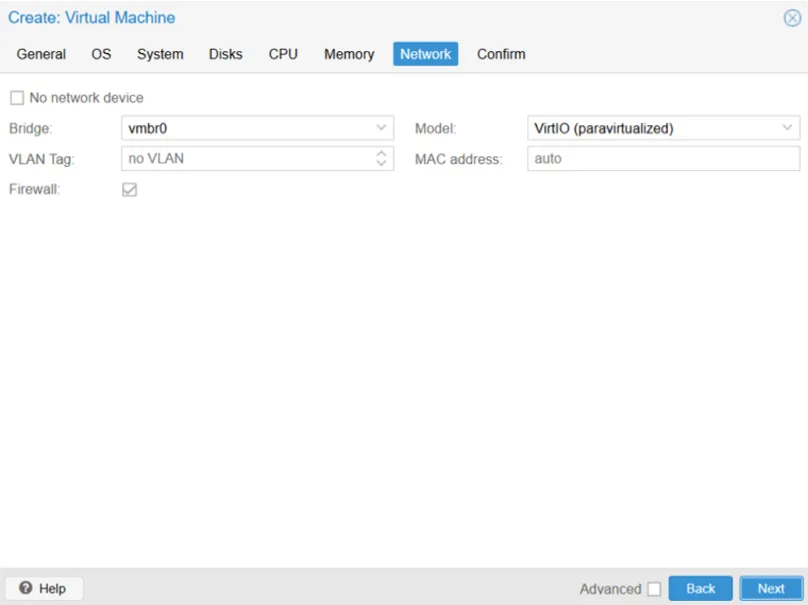
- Select “Virtio (Paravirtualized)” for network model. Following interfaces need to be configured. Create appropriate bridge interfaces for virtual NICs. a. Management. b. Internal. c. External
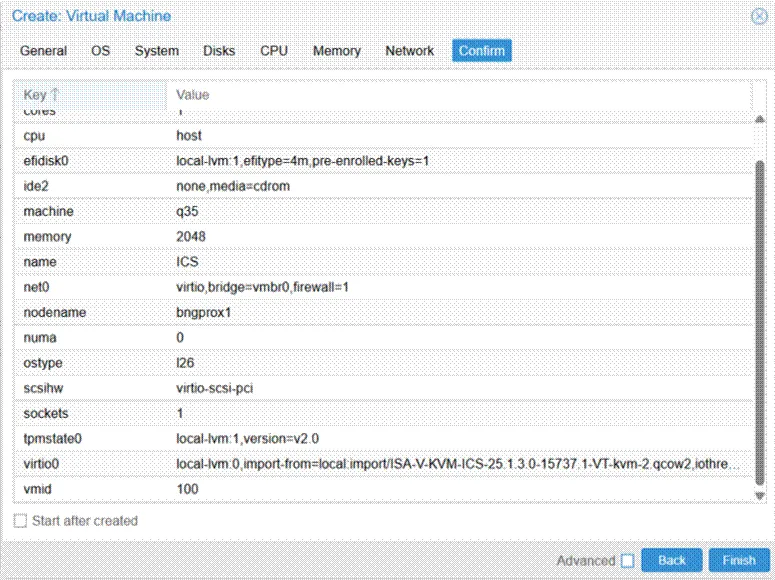
- Click Confirm. Click Finish.
- Start virtual machine.
Configuration Initialization
ICS on Proxmox supports configuration initialization through init ISO image.
- Extract kvm_template.xml file from KVM image tar.gz file. Example:- ISA-V-KVM-ICS-25.1.4.0-18668.1.tar.gz.
- Fill in required details.
- Create ISO image from kvm_template.xml.

File name must be kvm_template.xml
- .Upload kvm.iso to Proxmox ISO datastore.
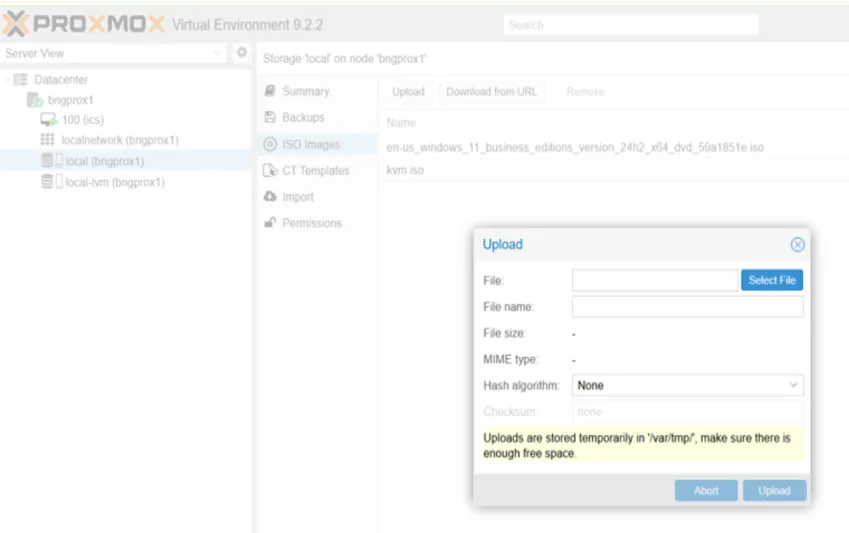
- When creating virtual machine, select ISO image.
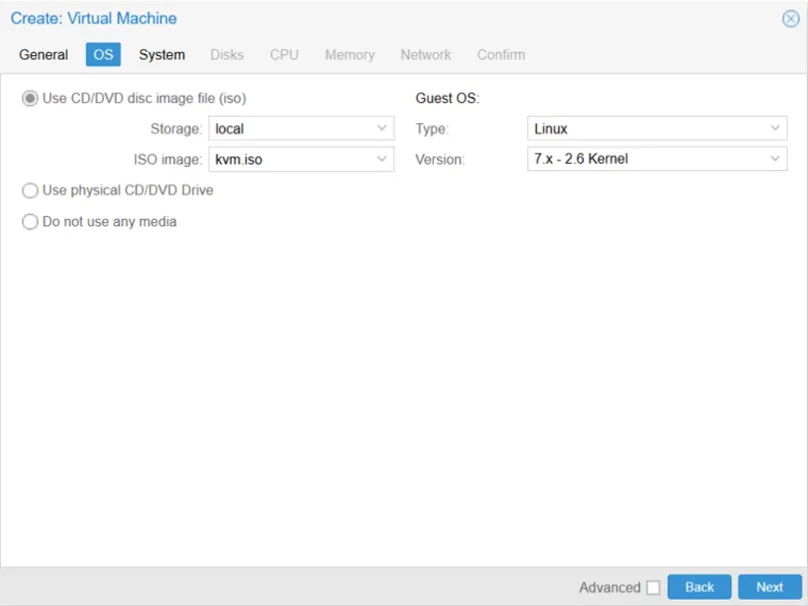
- Import qcow2 image in subsequent steps.
- If initialization is successful, then following output will be seen.

Reference working configuration