
Setting up the Teams Bot Integration
6 min
For integrating Microsoft Teams with Ivanti Neurons for ITSM, on-premise users should first setup the environment by downloading the package and executing PowerShell script.
What the Powershell Script does?
- Creates the directory in the inetpub folder.
- Creates a new application pool and sets item property for it.
- Creates a new web application and sets item property for it.
- Silently installs the required application, as in you might not get any prompts to proceed with the installation.
- Copies the required binaries to the destination folder.
- Creates the appsetting.json once the ipaddress/machine name/local host name is provided.
Setting up the Central Config API Key
- Log in to the CentralConfig > Configure Application > Security Controls > ApiKeys.
- Find the CentralConfigApiKey as shown below and copy the value.
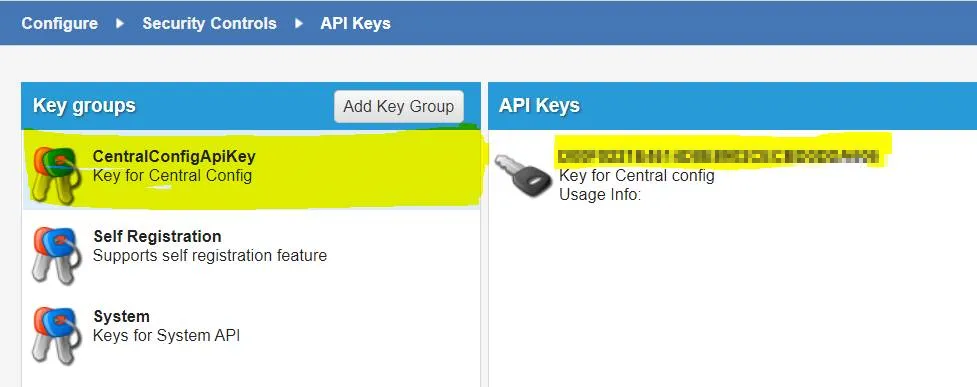
- Paste the copied value in the appsettings.json file for the CentralConfigApiKey. For example, central-config-api-key"=”xxxxxxxxxxxxxxxxxxxxxxxxxxxxxx”
Executing the PowerShell Script
Download the zip file to a relevant folder in your machine.
- Extract the zip file.
- Open PowerShell as Administrator.
- Go to the location where the PowerShell script is located, that is, the location where you extracted the zip file.
- Run the script - .\TeamsBot.ps1.
- You will be prompted for the Appserver as well as the Central Config ipaddress/ Machine name/ localhost name. name/ localhost. Enter the appropriate Address/Machine name/localhost.
The configuration is done.
Troubleshooting
Make sure that Boolean values (true/false) don't not have double quotes.