
Data Export: Splunk
The following system statistics are forwarded to the Splunk Indexer:
- Ivanti EPMM server: Java Virtual Machine (JVM)
- CPU: including an overview and breakdown by host, process, user, stat, and source.
- Memory: including an overview and breakdown by host, process, user, and source.
- Disk: including usage by host, source, and files opened by command, type, and user.
- Network: including interfaces, interface throughput, connection details, and network sources.
This section includes the general workflow to configure the Splunk Indexer:
Step 1 | Enabling the Splunk Forwarder to turn on the Splunk Forwarder so it can push data to the Splunk Indexer. |
|---|---|
Step 2 | Adding a Splunk Indexer to configure which external Splunk Indexer will receive and manipulate the data from the Splunk Forwarder. |
Step 3 | Configuring Splunk Data to configure which data Splunk Forwarder sends to the Splunk Indexer. |
Enabling the Splunk Forwarder
Procedure
- Log into System Manager.
- Go to Settings > Services.
- Select Enable next to Splunk Forwarder.
- Click Apply > OK to save the changes.
Adding a Splunk Indexer
Procedure
- Log in to System Manager.
- Go to Settings > Data Export > Splunk Indexer.
- Click Add to open the Add Splunk Indexer window.
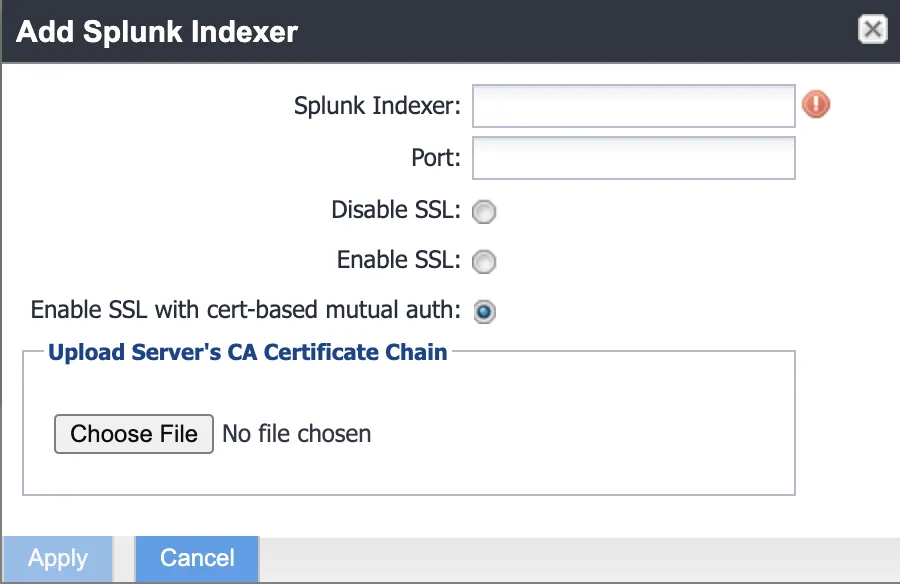
- Modify the fields, as necessary. See the following table for descriptions.
Table: Add Splunk Indexer window
Fields | Description |
|---|---|
Splunk Indexer | Add the IP address of your Splunk Enterprise Server. |
Port | Add the port number of your Splunk Enterprise Server. |
Disable SSL | Click to disable Secure Socket Layer (SSL) encrypted communication. |
Enable SSL | Click to enable or re-enable SSL encrypted communication. |
Enable SSL with cert-based mutual auth | Click to enable or re-enable SSL with certificate-based mutual authentication. Select this option to connect to Splunk Heavy Forwarder for secure mutual authentication to Splunk. |
Choose file | Click Choose File and browse to the CA certificate chain. Select it and click OK. |
- Click Apply > OK to save the changes.
Configuring Splunk Data
Procedure
- Log in to System Manager.
- Go to Settings > Data Export > Splunk Data. The Data to Index window opens.
- Modify the fields, as necessary. Click Show/Hide Advanced Options to further customize which data to send to Splunk.
- Click Apply > OK.
- Restart the Splunk Forwarder by disabling it, then enabling it again.
- Go to Settings > Services.
- Select Disable next to Splunk Forwarder.
- Click Apply > OK.
- Select Enable next to Splunk Forwarder.
- Click Apply > OK to save the changes.
Configuring Splunk certificates
Procedure
- Configure the Splunk client certificate in Ivanti System Manager at Security > Certificate Mgmt > Splunk Client certificate.
- Configure the Splunk server certificate in Ivanti System Manager at Data export> Splunk indexer page.