Prerequisites
1 min
- Device must be Microsoft Entra Joined (cloud-only) or Microsoft Entra Hybrid Joined (on-premises AD + Entra ID). Pure on-premises domain-only joined devices are not supported.
- Windows Hello for Business enrolled for the signed-in user — PIN, fingerprint, or facial recognition configured via Settings → Accounts → Sign-in options. Ensure the Windows version is 11 and above.
- Microsoft Entra ID (Azure AD) tenant with an account that has permission to create App Registrations and grant admin consent for the tenant.
- Latest ISAC installed on system.
Configuration on Microsoft Azure
To create a user:
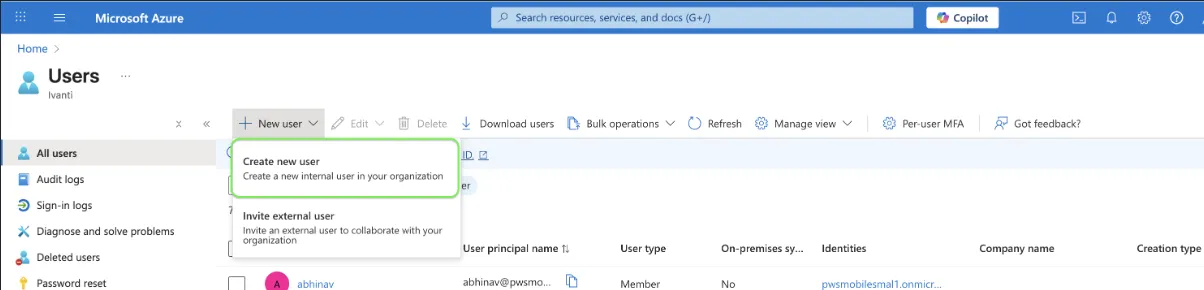
- In the Azure Portal, Users > All Users> click Create new user. Enter details.
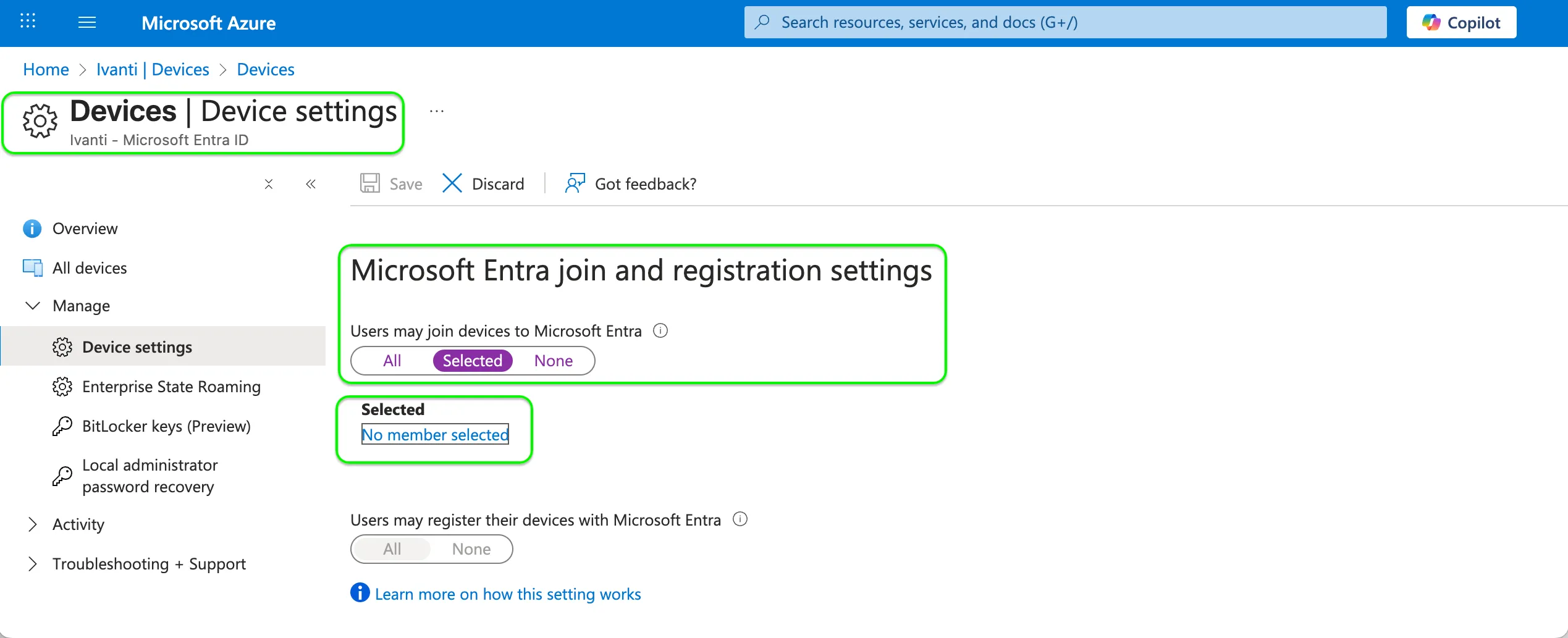
- To confirm that device registration is enabled, navigate to Azure Active Directory > Microsoft Entra ID > Manage > Devices > Manage >Device settings. In the Microsft Entra join and registration setting, click No member selected> click Add > select the user > click Ok.