ISAC support Windows Hello for Business SSO for Hybrid-joined devices - Non SAML Authentication
5 min
Windows Hello for Business (WHfB) SSO enables passwordless authentication for domain-joined devices by using credentials stored on the device.
Prerequisites:
- Ensure that the device is Microsoft Entra joined (cloud-only) or Microsoft Entra Hybrid joined (on-premises AD + Entra ID).
On-premises domain-only joined devices are not supported.
- Windows Hello for Business is enrolled for the user on the end point. To set up, navigate to Settings > Accounts > Sign-in options and complete setup for Windows Hello PIN, fingerprint, or face recognition.
- Windows 10 (version 1903 or later) or Windows 11.
Procedure:
- In the MS Azure portal, navigate to App registrations > New registration .
- Provide an application name and click Register.
- Ensure to save the Application (client) ID and the Directory (tenant) ID details.
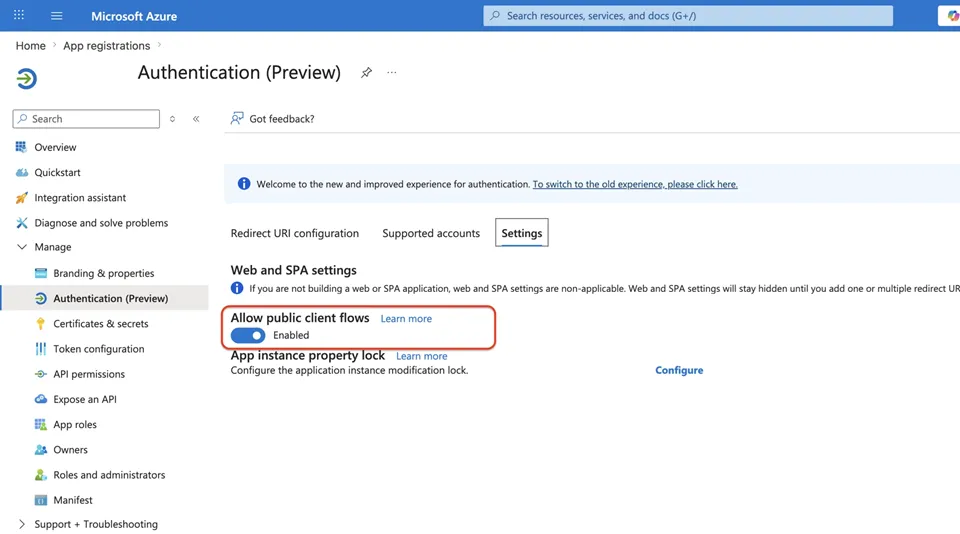
- Select App registrations > Authentication (Preview), toggle the Allow public client flows to Enabled.
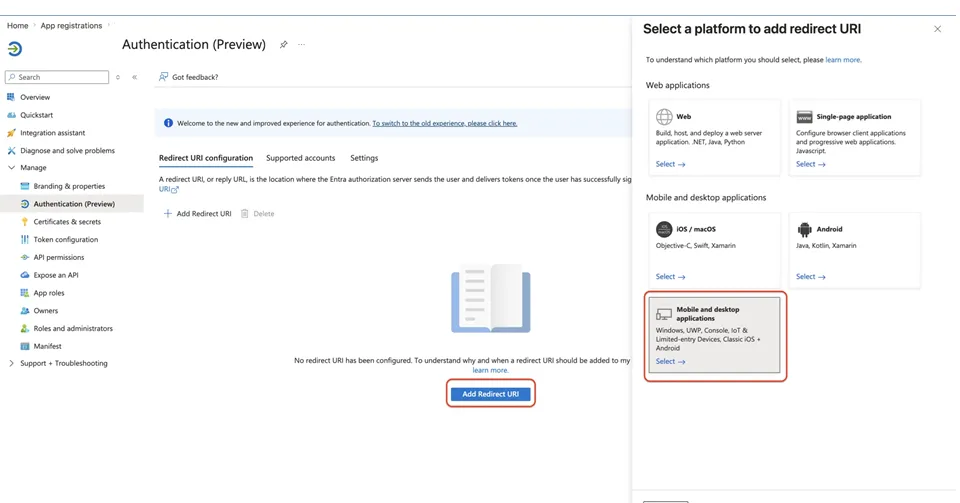
- In the Redirect URIs configuration for both Mobile and Desktop, select and add the following:
- https://login.microsoftonline.com/common/oauth2/nativeclient
- ms-appx-web://Microsoft.AAD.BrokerPlugin/<CLIENT_ID>
Replace the <CLIENT_ID> with the Application (client) ID.
- Select Home > App registrations > select the application > API permissions > Add a permission.
- In Microsoft Graph, select Delegated permissions, select User: Read and select Add Permissions.
- Click Grant admin consent for <your organization> , click Yes to confirm.
- Select Home > App registrations > Manage > Owners > Add Owners > Add user.
The following steps are configured in Ivanti Connect Secure:
Configuration on Ivanti Connect Secure
- In Ivanti Connect Secure, select Authentication > Auth. servers > New Server >Windows Hello for Business SSO server.
- Add the Client ID and Tenant ID.
- Click Save Changes.
Configuration of Fallback Authentication Support
- In Ivanti Connect Secure, select Users > User Realms > User Realms > Users > General > Enable Fallback Authentication Server.
- Select the Server type.
The authentication server type must be Windows Hello for Business. Ensure server details have the same Client ID and Tenant ID.
Windows Hello for Business (WHFB) authentication supports OAuth and SAML as fallback authentication methods. The OAuth or SAML authentication server configured as a fallback for Windows Hello for Business (WHFB) SSO must belong to the same Tenant ID as the WHFB authentication server.
- Click Save Changes.