Ivanti EPMM upgrade information
For detailed instructions on how to upgrade Ivanti EPMM using this upgrade information, see the Ivanti EPMM System Manager Guide.
Read Before you upgrade.
Ivanti EPMM upgrade readiness checklists
This section provides checklists to help you successfully complete the upgrade process for Ivanti EPMM and Sentry software. The checklists include:
Pre-Upgrade checklist
Before you upgrade, we encourage you to do a pre-upgrade checklist.
Pre-upgrade checklist
Check | Tasks | References |
|---|---|---|
| Prepare and plan for downtime |
|
| Review relevant documentation | See Ivanti EPMM product documentation. |
| Check certificates |
Knowledge Base article: Renewing an expired local CA certificate. |
| Check disk space for upgrade |
See Check disk space availability in this document for details on how to perform this check. |
| Check Boot partition | Verify you have at least 85MB free for /boot. |
| Ensure there is enough disk space |
|
| Check for new system requirements |
|
| Review your backup and high availability options |
|
| Set up your proxy configuration (if required) | Manually set the upgrade URL and use HTTP instead of HTTPS. |
| Prepare test devices |
|
Ivanti EPMM and Ivanti Sentry Compatibility Matrix
The supported and compatible versions continue to benefit from seamless interoperability while gaining improved security for between Ivanti EPMM and Ivanti Sentry connection.
See the following table for the Ivanti EPMM and Ivanti Sentry compatibility matrix.
Ivanti EPMM | Ivanti Sentry | 10.4.0 | 10.4.1 | 10.5.0 | 10.5.1 or 10.5.2 | 10.6.0 | 10.6.1 or 10.6.2 | 10.7.0 or 10.7.1 | 10.8.0 |
|---|---|---|---|---|---|---|---|---|
12.10.0 | — | — | — | | — |  | | |
12.9.0.0 | — | | — | | — | | | |
12.8.0.1 12.8.0.2 12.8.0.3 | — | | — | | — | | | |
12.8.0.0 | | — | | — | | — | — | — |
12.7.0.1 12.7.0.2 | — | | — | | — | | | |
12.7.0.0 | | — | | — | | — | — | — |
12.6.1.1 | — | | — | | — | | | — |
12.6.0.0 | | — | | — | | — | — | — |
Legends:
- = Supported
- NF = Non-FIPS deployments only
In FIPS mode, make sure port 9443 is available for secure communication between Ivanti EPMM and Ivanti Sentry services.
Check disk space availability
Before you upgrade, check disk space availability.
- Atleast 40GB of disk space must be available for 12.x.x.x upgrade to be successful.
If the disk space is not available, contact Ivanti Technical Support before proceeding with the upgrade.
For more information, see KB article.
Use one of the following methods to check disk space availability:
The CLI command: show system disk
The following sample output shows the available disk space in the last line. It is 15M in this example.
CORE(12.1.0.1a-6)@host.company.com#show system disk
Filesystem Size Used Avail Use% Mounted on
/dev/sda3 181G 20G 153G 12% /
tmpfs 16G 4.0K 16G 1% /dev/shm
/dev/sda1 95M 76M 15M 84% /boot
Upgrade considerations
After the pre-upgrade planning, we recommend you review the following considerations:
upgrade considerations
Check | Considerations | References |
|---|---|---|
| DB Schema and Data | Run pre-validation check after downloading the repository from System Manager. If this task fails, contact Ivanti Support. |
| Understand the stages |
|
| Leverage CLI upgrade commands (as appropriate) | |
| Understand scenario options | Single server High availability—Option 1: little downtime:
High availability—Option 2: zero downtime:
Download guide: Ivanti EPMM High Availability Management Guide |
| Monitor the upgrade |
|
| Additional reboot | Due to a kernel upgrade, an additional reboot is performed when you upgrade. It may take longer than expected for Ivanti EPMM to become available on the network. |
| Ports | HTTPS/ port 443 is the default port for fresh installations, but upgraded environments keep the previous port open, for example, port 8080. |
Post-Upgrade checklist
After completing the upgrade, we recommend the following verification checklist.
Post-upgrade checklist
Check | Tasks | References |
|---|---|---|
| Testing and troubleshooting |
|
| Verify services |
|
| Verify devices |
|
| HA system cleanup |
|
The System Manager
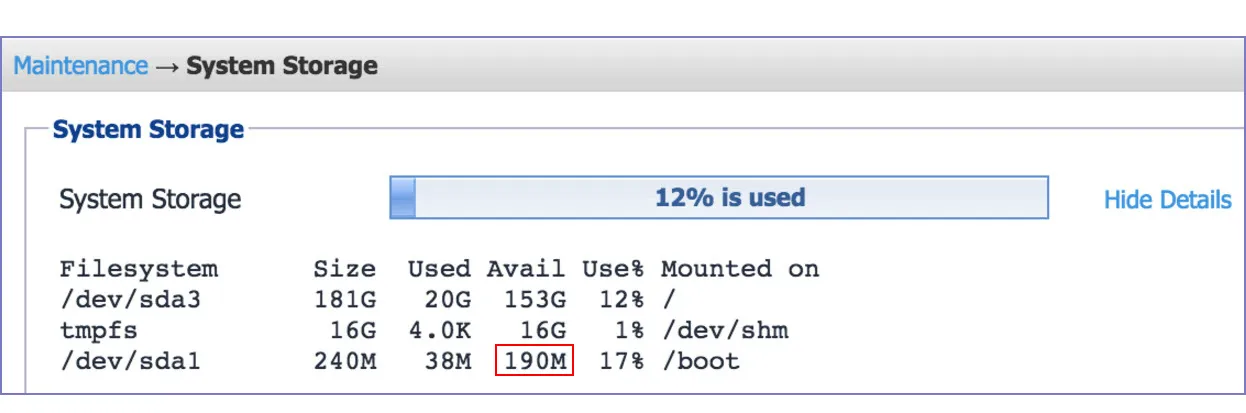
The System Manager > Maintenance > System Storage menu shows you how much Ivanti EPMM system storage you are using, and how much is still available.
- In the System Manager, go to Maintenance > System storage.
- Click More Details next to the System Storage bar that shows percent used.
- In this example, the available disk space is 190M.